Parameterization in Jmeter

Parameterization in Jmeter:

We parameterize the input to run the test with different set of data for each user. We will provide the data in a file and provide as input for a field.

For this we will create a .csv file in Excel and save it. For this example, we will parameterize four fields. They are fromPort, toPort, passFirst0 and passLast0.

 The details to corresponding fields are as follows:

We have our requests as shown below:

To add the data to the test we need to add the config element as below:
Right Click on Thread Group -> Add -> Config Element -> CSV Data Set Config

The CSV Data Set details were entered as follows:

Parameters for the CSV Data Set config is as below:
Attribute
Description
Required
Name
Descriptive name for this element that is shown in the tree.
No
Filename
Name of the file to be read. Relative file names are resolved with respect to the path of the active test plan. Absolute file names are also supported, but note that they are unlikely to work in remote mode, unless the remote server has the same directory structure. If the same physical file is referenced in two different ways - e.g. csvdata.txt and ./csvdata.txt - then these are treated as different files. If the OS does not distinguish between upper and lower case, csvData.TXT would also be opened separately.
Yes
File Encoding
The encoding to be used to read the file, if not the platform default.
No
Variable Names
List of variable names (comma-delimited). Versions of JMeter after 2.3.4 support CSV header lines: if the variable name field empty, then the first line of the file is read and interpreted as the list of column names. The names must be separated by the delimiter character. They can be quoted using double-quotes.
Yes
Delimiter
Delimiter to be used to split the records in the file. If there are fewer values on the line than there are variables the remaining variables are not updated - so they will retain their previous value (if any).
Yes
Allow quoted data?
Should the CSV file allow values to be quoted? If enabled, then values can be enclosed in - double-quote - allowing values to contain a delimeter.
Yes
Recycle on EOF?
Should the file be re-read from the beginning on reaching EOF? (default is true)
Yes
Stop thread on EOF?
Should the thread be stopped on EOF, if Recycle is false? (default is false)
Yes
Sharing mode
  • All threads - (the default) the file is shared between all the threads.
  • Current thread group - each file is opened once for each thread group in which the element appears
  • Current thread - each file is opened separately for each thread
  • Identifier - all threads sharing the same identifier share the same file. So for example if you have 4 thread groups, you could use a common id for two or more of the groups to share the file between them. Or you could use the thread number to share the file between the same thread numbers in different thread groups.
Now once the CSV Data Set is configured, we need to set the variables at appropriate position as shown:


The value is set as ${Variablename} for the required fields. For example here passFirst0 is set as ${FirstName} and passLast0 is set as ${LastName}.

Let us now verify the values are passed correctly to the required parameters from the csv file. To perform this we will add a Listener -> View Results tree as below:


In Thread group set the Number of users as 2 and run. We see that there are two sample results as we ran for two users. We check the first thread we see that fromPort is Frankfurt and toPort is London which is same as first record of our .csv file.


Now, let us verify the second thread results, we see that fromPort is London and toPort is New York. So for two different customers there are two different input provided.


In the same way we can check for the customer firstname and lastname also.


We can define one file and all requests can use same file for the parameters. In this way we can parameterize the data in Jmeter.

How to find the number of physical CPUs in Linux

1. How many physical CPUs does the server have?
2. How many cores on each CPU? Duo/Quad


In Linux it’s actually quite easy to get this info.
You could go through the /var/log/dmesg file or the /proc/cpuinfo file. We’ll look at the /proc/cpuinfo file.

Output of cat /proc/cpuinfo:
processor : 0
vendor_id : GenuineIntel
cpu family : 6
model : 26
model name : Intel(R) Xeon(R) CPU X5570 @ 2.93GHz
stepping : 5
cpu MHz : 2933.548
cache size : 8192 KB
physical id : 1
siblings : 8
core id : 0
cpu cores : 4
apicid : 16
fpu : yes
fpu_exception : yes
cpuid level : 11
wp : yes


flags : fpu vme de pse tsc msr pae mce cx8 apic sep mtrr pge mca cmov pat pse36 clflush dts acpi mmx fxsr sse sse2 ss ht tm syscall nx rdtscp lm constant_tsc nonstop_tsc pni monitor ds_cpl vmx est tm2 ssse3 cx16 xtpr sse4_1 sse4_2 popcnt lahf_lm
bogomips : 5867.09
clflush size : 64
cache_alignment : 64
address sizes : 40 bits physical, 48 bits virtual
power management: [8]
processor : 1
vendor_id : GenuineIntel
cpu family : 6
model : 26
model name : Intel(R) Xeon(R) CPU X5570 @ 2.93GHz
stepping : 5
cpu MHz : 2933.548
cache size : 8192 KB
physical id : 0
siblings : 8
core id : 0
cpu cores : 4
apicid : 0
fpu : yes
fpu_exception : yes
cpuid level : 11
wp : yes
flags : fpu vme de pse tsc msr pae mce cx8 apic sep mtrr pge mca cmov pat pse36 clflush dts acpi mmx fxsr sse sse2 ss ht tm syscall nx rdtscp lm constant_tsc nonstop_tsc pni monitor ds_cpl vmx est tm2 ssse3 cx16 xtpr sse4_1 sse4_2 popcnt lahf_lm
bogomips : 5866.85
clflush size : 64
cache_alignment : 64
address sizes : 40 bits physical, 48 bits virtual
power management: [8]

1. To get Physical CPU count?
Run “cat /proc/cpuinfo | grep “physical id” | sort | uniq | wc -l”.
$ cat /proc/cpuinfo | grep "physical id" | sort | uniq|wc -l
Output : 2
The machine has two Physical CPU.

2. How many cores?

Run “cat /proc/cpuinfo | grep “cpu cores” | uniq”.
$ cat /proc/cpuinfo | grep "cpu cores" | uniq
Output: cpu cores : 4
The machine has four Cores
4 mean that each physical CPU has 4 cores on it. If cpu cores was 1 then the CPU’s single core.

How many virtual processors?

Run “cat /proc/cpuinfo | grep “^processor”"
$ cat /proc/cpuinfo | grep "^processor"
processor : 0
processor : 1
processor : 2
processor : 3
processor : 4
processor : 5
processor : 6
processor : 7
processor : 8
processor : 9
processor : 10
processor : 11
processor : 12
processor : 13
processor : 14
processor : 15
We have 2 physical CPUs x 4 cores each = 8 virtual processors. So there should be 8 Virtual Processors. But here the Output is 16. Why is it showing 16.

The processor number is showing 16, due to HT (Hyper-Threading) enablement.

However, it’s a bit different for HT (Hyper-Threading). If you get cpu core = 1 but the virtual processors = 2 then the CPU’s running HT. HT will only work with the SMP kernel.

How to Install the Apache Web Server on a Windows PC

The Apache HTTP Server is one of the most widely used web server softwares available. It is an open-source software that can be run on a large number of different operating systems, including Windows. This article will teach you how to install the Apache web server on your Windows PC.
Steps
1If you haven't done so already, download the Apache HTTPD Web Server from the Apache web site . Be sure to download the apache_2.2.16-win32-x86-no_ssl MSI installer here: (http://httpd.apache.org/download.cgi)


2.Save the file to your Windows Desktop.


3.Double click the msi file saved on your Windows Desktop. You will see a window that looks like this:


4.Click "Next>".


5.Click the radio button "I accept the terms in the license agreement"


6.Click "Next>".


7.On the next window, again click "Next>".


8.Next, fill in all the text boxes with the following information:
"Network Domain": localhost
"Server Name": localhost
"Administrator's Email Address": your email address


9.Make sure the radio button "for all users, on port 80, as a service - recommended" is selected.


10.Click "Next>".


11.On the next window, click the radio button "Custom", and then click "Next>".


12.On the next window highlight "Apache HTTP Server" and click the "change" button.


13.We are going to install all the packages and scripts in the path C:\Server\Apache2\ (assuming C: is your main hard drive). So in the text box "Folder name:" type in "C:\Server\Apache2\". The ending backslash is important.


14.After you have typed in the path, click "OK" and then click "Next>". At this point, you should see a window that looks like this:


15.Click "Install" to begin the installation.


16.Once the Apache installation software has finished installing all the files on your computer, you will see a final window letting you know the installation was a success. Click the "Finish" button.

To check that the software was in installed successfully, open your favorite browser and type "http://localhost/" into the address bar. 

The Difference Between HTTP and HTTPS

Most web addresses begin with "HTTP," which is an acronym for "Hyper Text Transfer Protocol." It's the protocol used to allow you to communicate with web sites.


"HTTPS" stands for "Hyper Text Transfer Protocol Secure." It means that information exchanged between you and a web site is encrypted and cannot be hijacked by someone who might want to electronically eavesdrop when you type a credit card number, a password, a social security number, or any other person information.

The purpose of the email is to encourage you to check for the "HTTPS" before you give financial information. Most web sites are not HTTPS, but when you click a link to make a purchase, many of them will direct you to an HTTPS site.


According to Verisign.com, a provider of Internet infrastructure services, Secure Socket Layer Encryption is a technology that protects Web sites and makes it easy to develop trust by means of an "SSL Certificate that enables encryption of sensitive information during online transactions. Each SSL Certificate contains unique, authenticated information about the certificate owner and a Certificate Authority verifies the identity of the certificate owner when it is issued. "

Just because a website uses such SSL encryption does not safeguard internet users from phishing and other schemes. When visiting websites that accept financial information online it is always a wise practice to make sure the online company is legitimate, has a good reputation in customer service and uses SSL encryption in their transactions

tnsnames.ora file unable to edit or access denied error-Solved

The tnsnames.ora file is where the Oracle Client stores database connection entries. These entries contain information that allows the ODBC driver to establish network connections to an Oracle Database, including hostname and port number. Users must create an entry in this file for each database they wish to access. The syntax for connection entries is strictly defined, so it's important to make sure they are formatted correctly.

The sqlnames.ora file is where the Oracle Client stores various network connection settings which apply to ODBC connections. Like tnsnames.ora, entries in the file follow a rigid format. In order to connect to EPM, users must add lines permitting an encrypted connection.

Copies of the tnsnames and sqlnet entries used to connect to the EPM database are included in the initial authorization email EPM users receive.
Here i am showing the solution to resolve the access denied error when user wants to update it.

Follow these steps:

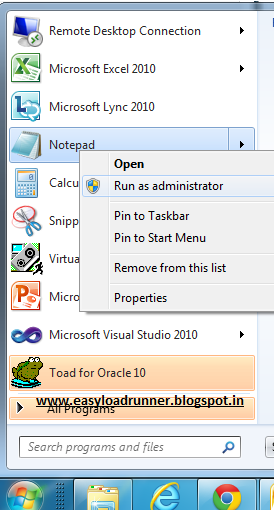
1.Begin by clicking on Start and go to All Programs go to Accessories-select Note pad


2.Right-click on Notepad and select Run as administrator button.In Notepad, click on File and goto Open. Switch the dropdown menu in the lower right hand corner of the screen from Text Documents (*.txt) to All Files.Then you are able to see the location of your tnsnames.ora file.

Locate the folder where you installed the Oracle Client (ORACLE_HOME). If you used the document EPM - Downloading and Installing Oracle 11g Client and ODBC Driver for Windows to install the Client, this folder should be named C:\Oracle32 or C:\Oracle64 depending on the version of the software you chose to install. 

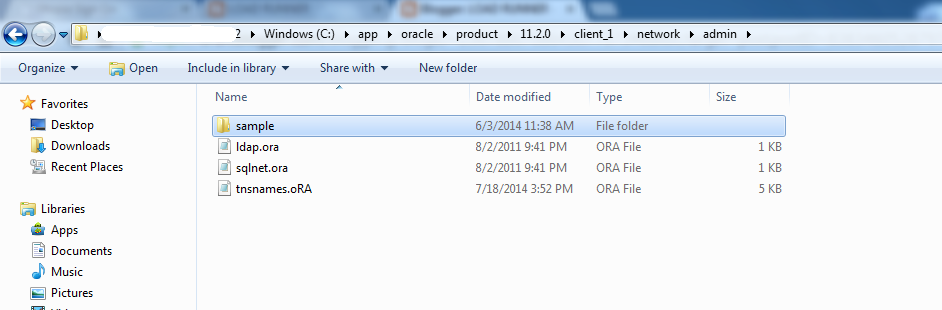
3.Open the below location in your machine:

Go to  C(Windows) drive-app-Oracle-Product_11.2.0-Client_1-network


If files named tnsnames.ora or sqlnet.ora already exist in the folder, open them. Before making any changes to the files, click File goto Save As..and save them as tnsnames.ora.old and sqlnet.ora.old (be sure to switch the Save as Type: dropdown box to read All Files before saving). In doing this, you are creating backups of the original files in case you need to revert to the older versions at some point. If neither of these files already exists, hit Cancel to return to the Notepad editor.

Copy and paste the tnsnames connection entry you received  into the Notepad document. If you are editing an existing tnsnames.ora file, append the entry to the end of the file. Click File goto Save As... and save the file as tnsnames.ora. If you are prompted to replace the existing file,then click the button 'Yes'.

Copy and paste the sqlnet connection entry you received  email into the Notepad document. If you are editing an existing sqlnet.ora file, append the entry to the end of the file. Click File goto Save As... and save the file as sqlnet.ora. If you are prompted to replace the existing file, click 'Yes'.

4.To test your the ODBC connection, open a command prompt (Click Start, type 'cmd' in the search bar, and hit Enter). At the command prompt, enter the following command: 'tnsping connection_name'. For example, if you wish to test the connection to the EPQAS test database, type 'tnsping epqas'. 

You will get the output as:


IIS SERVER (Internet Information Server)

IIS (Internet Information Server) is a group of Internet servers (including a Web or Hypertext Transfer Protocol server and a File Transfer Protocol server) with additional capabilities for Microsoft's Windows NT and Windows 2000 Server operating systems. IIS is Microsoft's entry to compete in the Internet server market that is also addressed by Apache, Sun Microsystems, O'Reilly, and others. With IIS, Microsoft includes a set of programs for building and administering Web sites, a search engine, and support for writing Web-based applications that access databases. Microsoft points out that IIS is tightly integrated with the Windows NT and 2000 Servers in a number of ways, resulting in faster Web page serving.

A typical company that buys IIS can create pages for Web sites using Microsoft's Front Page product (with its WYSIWYG user interface). Web developers can use Microsoft's Active Server Page(ASP)technology, which means that applications - including ActiveX controls - can be imbedded in Web pages that modify the content sent back to users. Developers can also write programs that filter requests and get the correct Web pages for different users by using Microsoft's Internet Server Application Program Interface (ISAPI) interface. ASPs and ISAPI programs run more efficiently than common gateway interface (CGI) and server-side include (SSI) programs, two current technologies. (However, there are comparable interfaces on other platforms.)

Microsoft includes special capabilities for server administrators designed to appeal to Internet service providers (ISPs). It includes a single window (or "console") from which all services and users can be administered. It's designed to be easy to add components as snap-ins that you didn't initially install. The administrative windows can be customized for access by individual customers

Using ANTS Memory Profiler to track down a memory leak in a WinForms application

Source: http:www.red-gate.com/products

Using ANTS Memory Profiler to track down a memory leak in a WinForms application
This walkthrough shows how to locate a memory leak using a sample application called QueryBee. QueryBee is a simple WinForms application for running queries against SQL Server databases. It has a database connection dialog and a query window to query the database. We know our application is leaking memory, because every time we open a query window and close it again, our memory usage increases.

When you open the profiler, you first see the Startup screen:


Figure 1. The ANTS Memory Profiler startup screen.

Here, there’s a list of your recent profiling sessions so you can re-run them easily. For this example, we’ll start a new session by clicking New profiling session.

The New profiling session screen is displayed:


Figure 2. It's easy to configure and start a new profiling session.

All we need to do is point it at QueryBee, choose our performance counters, and click Start profiling.

The profiler starts up QueryBee and begins collecting performance counter data:


Figure 3. Whilst profiling, ANTS Memory Profiler collects performance counter data. The profiler is telling us that it's profiling our application. There are also some useful instructions on this screen telling us to take and compare snapshots.

Taking and comparing memory snapshots is a key activity when looking for memory leaks, so our approach will be as follows:
Wait for QueryBee to open.
Take a first snapshot without using the application; this first snapshot will be used as a baseline.
Within QueryBee, perform the actions that we think cause the memory leak.
Take a second snapshot.
Examine the comparison that the profiler shows us after it has finished taking and analyzing the second snapshot.

So, QueryBee is open, sitting in our system tray.

At this point, we take a first snapshot, which we will use as a baseline for comparison with later snapshots.

When we click the Take Memory Snapshot button, the memory profiler forces a full garbage collection and takes a snapshot of the heap memory it is using.


Figure 4. Results from our first snapshot – Summary screen.

Now, we go back to QueryBee and perform the tasks which we think cause the memory leak.

We open up QueryBee and connect to a database.


Figure 5. QueryBee – Database connection dialog.


Figure 6. QueryBee – The query window.

The query window opens up and we enter and execute a SQL query.

We obtain some results and close the query window.


Figure 7. QueryBee – The results are displayed in a grid.

We close the query form.

At this point, the window is gone. We expect the memory usage to fall back to where it was in the first snapshot, but that is not the case.


Figure 8. Despite closing our query window, the memory usage has not fallen.

So what's happening here? We take a second snapshot and get the results.


Figure 9. The summary pane compares the results of the two snapshots.

A number of problems are highlighted by the summary screen.
We can see a large memory increase between snapshots, which we noticed on the timeline (top left).
The Large Object Heap appears to be fragmented, which could cause problems (top right).
The Generation 2 heap accounts for a large proportion of memory usage - often indicating objects are being held onto for longer than necessary (bottom left).

We can choose to select one of the largest classes which are shown to us in the bottom right of the screen, but instead we switch to the class list to find out more. The class list gives us a fuller picture of what's in the snapshot.

We're interested in objects which have been created since the baseline snapshot, so we need to look at types which have more instances in the second snapshot. We therefore sort by Instance Diff in decreasing order.


Figure 10. The class list allows you to compare memory usage in both snapshots in more detail.

The String class has been placed at the top of the list, with over 300,000 new instances. We want to understand why there is such a large increase so load the Instance Categorizer for the String class by clicking the  icon.


Figure 11. The Instance Categorizer shows chains of instances sorted by their shortest path to GC Root.

We see that over 21MB of the String class are held in memory by the same shortest path back to GC Root, via our QueryForm and ConnectForm. We select Show the Instances on this Path to view a list of every instance in the previous category.


Figure 12. The instance list view shows us a set of strings which we recognize as coming from our SQL Database.

The Instance List is showing us data which QueryBee had retrieved from the SQL Database, but that data should have been destroyed when QueryForm was closed. We select one of the instances and click the  icon to generate an Instance Retention Graph.


Figure 13. This instance retention graph.

Using the instance retention graph, we should be able to find out what is still referencing our String instances. Then, we'll be able to go back into our code to break the chain of references that is keeping them in memory.

We start at the bottom and work our way up the graph until we find a reference that needs to be broken. We'll just need to break the chain at one point to allow the garbage collector to clean up everything below that.

By navigating up, we can see the string is being held onto by QueryForm, even though that should have been released from memory. Looking a little further up, the graph is telling us that a System.EventHandler is referencing QueryForm and, if we step up one more level, it's telling us that the event handler is referenced by our ConnectForm instance – this is the form that asked us for the database connection details. In other words, the ConnectForm is holding onto the QueryForm via an Event Handler.

If we look at this node more closely, we see that it's actually being referenced by the ConnectForm's Foregrounded field.

Let's find this Foregrounded event in our code. We right-click on the QueryBee.ConnectForm node and open the ConnectFormsource code in Visual Studio™.


Figure 14. Foregrounded event in the ConnectForm source code.

The profiler automatically jumps to the Foregrounded event. We check where it is being used by right-clicking on Find All References.


Figure 15. The Foregrounded event is used in three places.

We've got three usages and we find that the last usage is where QueryForm registers for the Foregrounded event, but it doesn't look like it unregisters. If we fix that, then the memory leak should go away.

Once we're done, we need to rebuild, but first we need to stop profiling QueryBee so that the executable isn't locked. We go back to Profiler and click on the Stop Profiling button.

Then, we rebuild.


Figure 16. We rebuild our QueryBee application.

Back in the profiler, we start up a new profiling session. We want to find out whether the reference to the QueryForm has disappeared.

Note that it remembered our settings from last time, so all we need to do is click Start Profiling.


Figure 17. The settings dialog remembers settings from last time.

We take a first snapshot to use as a baseline.

We perform the same actions as last time: take a baseline snapshot while QueryBee is idle, then a snapshot once we’ve connected and run a query.

We'll also take an extra snapshot, because we want to be able to verify that the QueryForm has disappeared.

Finally, we close the query window with the results grid and we take a third snapshot.

We switch to a comparison between snapshots 1 and 3, using the snapshot selection field just under the timeline.


Figure 18. Summary screen comparing snapshots 1 and 3.

We can see there is now only a small memory increase between the snapshots, which is promising. Let's see if there's a QueryForm still in the class list.

We switch to the class list view and search only for classes in the QueryBee namespace.


Figure 19. Class list for the QueryBee namespace.

No, it's gone. We're no longer leaking the form