How to save test results in jmeter

There is one more way about how to do it - using the command line options.

So, if you want to run the test plan from file test.jmx and save the testing results to the file log.jtl, use the following command:

jmeter -n -t test.jmx -l log.jtlYou can configure how the result data will be saved by editing the file jmeter.properties (section "Results file configuration"). For example, if you want to save the results in CSV format you should edit the following property:

jmeter.save.saveservice.output_format=csvThis way is more powerful than the one described in the previous part (Simple Data Writer) because it allows you to set some additional options like CSV delimiter, timestamp format, etc. Sometimes it could be very helpful.

Capturing the response data size limit in JMeter

View Results Tree is very useful listener especially when you are debugging your test plan. You can review the response data and ensure that your test plan works good. But sometimes you you can see a message in the beginning of the response data like "Response too large to be displayed. Size: 313674 > Max: 204800, Start of message:".


And unfortunately you are not able to see the whole response data. By default JMeter shows only first 200 Kb of response data. To resolve this problem you should edit the file jmeter.properties and uncomment the line:

view.results.tree.max_size=0 This will disable response data size check at all.


After you have saved jmeter.properties you will never see this message again.


Creating Custom Request in VuGen LoadRunner

There are some situations where you need to create custom request so that you can manipulate the request according to your need. Here we will see how to create custom request and tamper with it to get our job done.

Basic:When we record the script for any web application, we generally choose HTML-based recording because it is easy and minimizes the correlations you have to handle in the script.LoadRunner do generate custom request when some request does not fall under category of lr_web_submit_data() or lr_web_submit_form() requests category.Challenge:Suppose there is one request where you are sending some data items with it and every time there will be random number of data items like, first time there will be four data items second time there will be five data items in the same request. Here you cannot use same recorded request as number of data items are going to be different every time.In below example you can see that there are only four data items in the request next time there may be five data item.
"Name=SearchResultsGrid_ctl04_ViewPackageDialogResult", "Value=291570", ENDITEM,"Name=SearchResultsGrid_ctl08_ViewPackageDialogResult", "Value=291566", ENDITEM,"Name=SearchResultsGrid_ctl11_ViewPackageDialogResult", "Value=291563", ENDITEM,"Name=SearchResultsGrid_ctl12_ViewPackageDialogResult", "Value=291562", ENDITEM,

Solution:Here you can create a custom request and use a parameter which will hold the manipulated string of data items. In that string you can save different number of data items and you can change it as required.Procedure:First record the script with HTML-based recording and with proper transaction names for every action.Save that script and then click on Tools> Regenerate Script…


Below popup will come, click on Options…


It will show you the Regenerate options, Click on General> Recoding


    There are two options available, HTML-based script and URL-based script. Choose URL-based script.
    For URL-based script there is a button for advanced settings named URL Advanced, click on it.
    From the new popup select Use web_custom_request only.
    Save the settings and regenerate the script.
    In the regenerated script you can see that new script is generated which contain only web_custom_request.
    Now find the particular request which you want to manipulate with the help of transaction names which you have given while recording the script.

    Below is the HTML-based recorded request, You can see that there are four data items of grid results,
1
2
3
4
5
6
7
8
9
10
11
12
13
14
15
web_submit_data("managepackages.aspx_4",
"Action=http://{p_Url}/site/secure/reportcenter/managepackages.aspx",
"Method=POST",
"TargetFrame=",
"RecContentType=text/html",
"Referer=http://{p_Url}/site/secure/reportcenter/managepackages.aspx",
"Snapshot=t50.inf",
"Mode=HTML",
ITEMDATA,
"Name=SearchResultsGrid_ctl03_ViewPackageDialogResult", "Value={c_PackageID}", ENDITEM,
"Name=SearchResultsGrid_ctl04_ViewPackageDialogResult", "Value=291570", ENDITEM,
"Name=SearchResultsGrid_ctl08_ViewPackageDialogResult", "Value=291566", ENDITEM,
"Name=SearchResultsGrid_ctl11_ViewPackageDialogResult", "Value=291563", ENDITEM,
"Name=SearchResultsGrid_ctl12_ViewPackageDialogResult", "Value=291562", ENDITEM,
LAST);
Below is the custom request which is URL-based,
1
2
3
4
5
6
7
8
9
10
11
12
13
14
15
16
17
18
web_custom_request("managepackages.aspx_4",
"URL=http:// {p_Url}/site/secure/reportcenter/managepackages.aspx",
"Method=POST",
"Resource=0",
"RecContentType=text/html",
"Referer= http://{p_Url}/site/secure/reportcenter/managepackages.aspx",
"Snapshot=t135.inf",
"Mode=HTTP",
"Body=SearchResultsGrid_ctl03_ViewPackageDialogResult={c_PackageID}"
"{final_string}",
/*//below string is going to vary every time so we are going to manipulate it every time using string manipulation functions//

"&SearchResultsGrid_ctl04_ViewPackageDialogResult=291570"
"&SearchResultsGrid_ctl08_ViewPackageDialogResult=291566"
"&SearchResultsGrid_ctl11_ViewPackageDialogResult=291563"
"&SearchResultsGrid_ctl12_ViewPackageDialogResult=291562"
*/

LAST);


In custom request you can manipulate final string every time using string manipulation functions available in VuGen.

final_sting= “&SearchResultsGrid_ctl04_ViewPackageDialogResult=291570&SearchResultsGrid_ctl08_ViewPackageDialogResult=291566&SearchResultsGrid_ctl11_ViewPackageDialogResult=291563&SearchResultsGrid_ctl12_ViewPackageDialogResult=291562″

Scripting for Microsoft ASP.NET VIEWSTATE in VuGen LoadRunner

ASP.NET web applications maintain state of data by passing hidden _VIEWSTATE field encoded using base64 algorithm. The state of the page is restored based on the VIEWSTATE. If on the client side, the value of textbox has been changed, VIEWSTATE will now have the new value. (Obviously, this stage does not happen when the page is requested for the first time).

Let’s see how Web Applications developer store objects in VIEWSTATE,

// Storing a Customer object in view state.
Customer cust = new Customer ("Dilip", "Kutarmare");
ViewState["CurrentCustomer"] = cust;

// Retrieve a student from view state.
Customer cust = (Customer) ViewState["CurrentCustomer"];

Now we will see how to capture and replace VIEWSTATE in a recorded script,

1. First set the html parameter length to maximum so that it can store VIEWSTATE, You can adjust this number after examining the captured value.

web_set_max_html_param_len("50000");

2. Capture the VIEWSTATE value when it is returned from the server using web_reg_save_param() function

web_reg_save_param("MyViewState","LB=\"__VIEWSTATE\" value=\"","RB=\"","ORD=ALL",LAST);

3. Substitute the captured value with the parameter name in which you captured the VIEWSTATE:

"Name=__VIEWSTATE", "value={MyViewState}", ENDITEM,

4. Run the script (with enabled advanced log) in VuGen and verify that the correlation function is capturing the right value.

Removing Zero from the Date in VuGen LoadRunner

Enter start date and end date and date should not include zero before actual value of month and day.

for example: Invalid date format: 04/27/2011

                       Valid date format: 4/27/2011

Script:

//variable declaration
char month[10], day[10], year[10], startDate[10], endDate[10];
int nonZeroDay, nonZeroMonth;

/*if you want to run script for multiple interactions then you have to nullify
the concatenated string before starting new iteration otherwise it
will keep the old value*/
strcpy(startDate, "");
strcpy(endDate, "");

//original date which contain zero in the date
lr_save_datetime("Today’s Date is: %m/%d/%Y", DATE_NOW, "normalDate");
lr_output_message(lr_eval_string("{normalDate}"));

//for generating non zero start date

//to assign the current date parts to a parameter
lr_save_datetime("%m", DATE_NOW, "month");
lr_save_datetime("%d", DATE_NOW, "day");
lr_save_datetime("%Y", DATE_NOW, "year");

//to remove zero from the string. e.g.getting '4' from '04'

nonZeroMonth = atoi(lr_eval_string("{month}"));
lr_save_int(nonZeroMonth, "month");

nonZeroDay = atoi(lr_eval_string("{day}"));
lr_save_int(nonZeroDay, "day");

//creating a date string using concatenation of nonzero date parts and separator '/'
strcat(startDate, lr_eval_string("{month}"));
strcat(startDate, "/");
strcat(startDate, lr_eval_string("{day}"));
strcat(startDate, "/");
strcat(startDate, lr_eval_string("{year}"));

lr_save_string(startDate, "p_StartDate");
lr_output_message("Start Date is: %s", lr_eval_string("{p_StartDate}"));

//for generating non zero end date by incrementing date by one day offset
lr_save_datetime("%m", DATE_NOW + ONE_DAY, "month");
lr_save_datetime("%d", DATE_NOW + ONE_DAY, "day");

lr_save_datetime("%Y", DATE_NOW + ONE_DAY, "year");
nonZeroMonth = atoi(lr_eval_string("{month}"));
lr_save_int(nonZeroMonth, "month");

nonZeroDay = atoi(lr_eval_string("{day}"));
lr_save_int(nonZeroDay, "day");

strcat(endDate, lr_eval_string("{month}"));
strcat(endDate, "/");
strcat(endDate, lr_eval_string("{day}"));
strcat(endDate, "/");
strcat(endDate, lr_eval_string("{year}"));

lr_save_string(endDate, "p_endDate");
lr_output_message("End Date is: %s", lr_eval_string("{p_endDate}"));


Output:


Today’s Date is: 04/27/2011
Start Date is: 4/27/2011
End Date is: 4/28/2011

lr_eval_string in load Runner

To correlate statements for protocols that do not have specific functions, you can use the C Vuser
correlation functions. These functions can be used for all C-type Vusers, to save a string to a
parameter and retrieve it when required.

lr_eval_string :Replaces all occurrences of a parameter with its current value.
lr_save_string :Saves a null-terminated string to a parameter.
lr_save_var :Saves a variable length string to a parameter.

Using lr_eval_string:

In the following example, lr_eval_string replaces the parameter row_cnt with its current value. This value is sent to the Output window using lr_output_message.

lrd_stmt(Csr1, "select count(*) from employee", -1, 1 /*Deferred*/,
...);
lrd_bind_col(Csr1, 1, =;COUNT_D1, 0, 0);
lrd_exec(Csr1, 0, 0, 0, 0, 0);
lrd_save_col(Csr1, 1, 1, 0, "row_cnt");
lrd_fetch(Csr1, 1, 1, 0, PrintRow2, 0);
lr_output_message("value: %s" , lr_eval_string("The row count is:
"));

Using Vuser Functions in GUI Vuser Scripts

This section lists the Vuser functions that you can use to enhance your GUI user scripts.

declare_rendezvous: Declares a rendezvous.

declare_transaction :Declares a transaction.

end_transaction :Marks the end of a transaction for performance analysis.

error_message: Sends an error message to the Controller.

get_host_name: Returns the name of a load generator.

get_master_host_name :Returns the name of the Controller load generator.

lr_whoami :Returns information about the Vuser executing the script.

output_message: Sends a message to the Controller.

rendezvous: Sets a rendezvous point in a Vuser script.

start_transaction: Marks the beginning of a transaction for performance analysis.

user_data_point: Records a user-defined data sample

Serialization methods used in FLEX Protocol in LoadRunner 11.52

Recording settings

A. Use only a single protocol - FLEX
B. In the recording settings ensure the following options:


1. Use URL based recording mode
2. Under Flex Configuration check the box
– Do not serialize externalizable objects.
3. Set Port mapping as WinInet level.
C. Disable Flex RTMP node (Used during video streaming)
Serialization in Flex scripts
A. UseGraniteDS configuration:

Defines the server side Data Service configuration. If you select this option, do not select Use Flex LCDS/BlazeDS jars to serialize the messages. Ensure that the granit-config.xml file matches the one deployed on the server.

B. Using External Java Serializer:

You can use the Java classes from the Flex server to serialize AMF messages in your script. This process has been simplified

so that you need to include the application JAR files only if the AMF objects implement an externalizable interface.

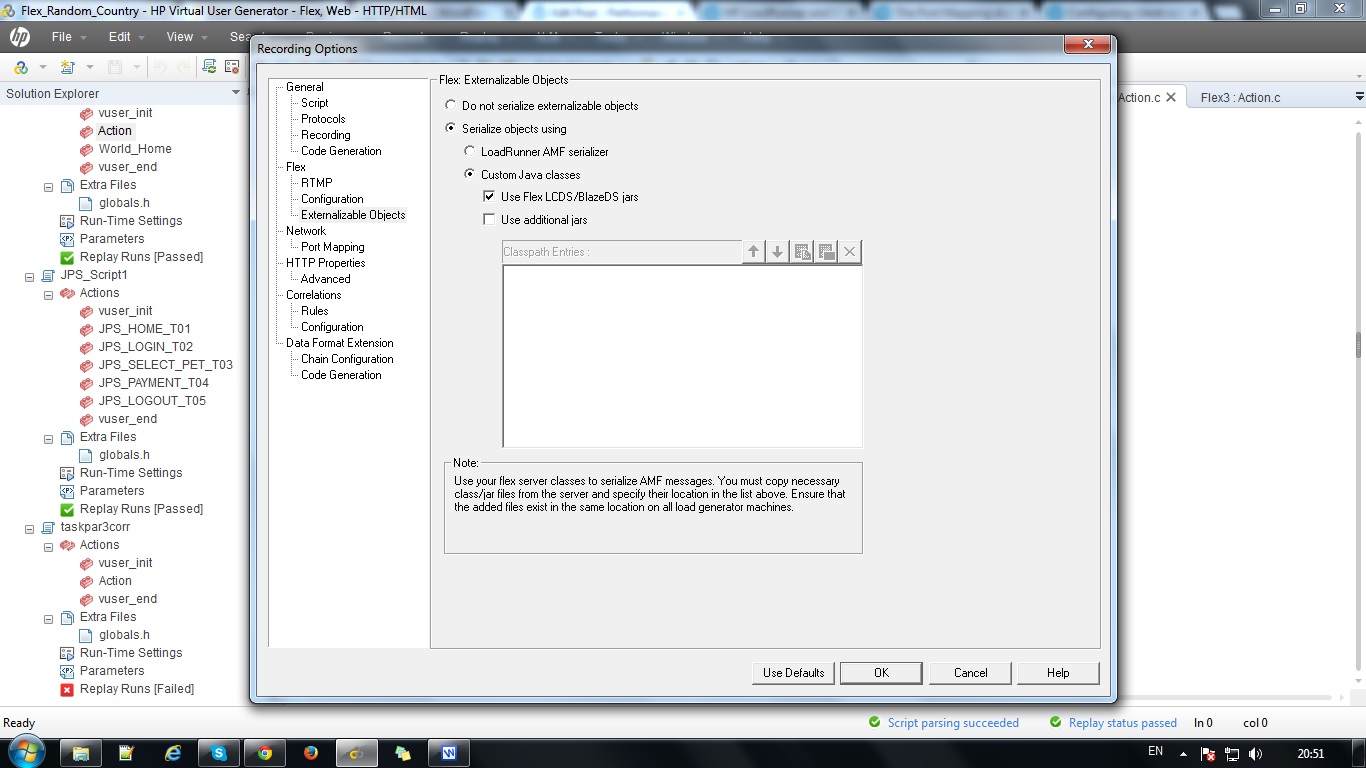
1. In the Recording Options > Flex > Externalizable Objects node, select Serialize objects using and select Custom Java Classes from the menu.

2. Add the relevant files by using the Add all classes in folder or Add JAR or Zip file buttons. Add the following files:

1. For Adobe BlazeDS or Adobe LCDS, add the following JAR files:

flex-messaging-common.jar

flex-messaging-core.jar

2. Regenerate the script and note any errors. Open the recording options dialog box using the Generation

Options button and add the necessary application JAR files.


3. Ensure that the added files exist in the same location both on the VuGen machine and on all load generators. The Limitations for

the Java Serializer are it Supports JDK versions 1.6 and earlier, Supported servers are Adobe BlazeDS and Adobe Livecycle DS,

Microsoft .NET classesare not supported. During code generation VuGen performs a validity test of the request buffers by

verifying that the buffer can be read and written using the provided jars. Failure in this validity test indicates that

the classes are incompatible with LoadRunner.

C. LoadRunner Serializer:

You can attempt to serialize externalizable objects using the LoadRunner serializer. Ensure that you

have saved all open scripts because this option may result in unexpected errors or invalid steps.

Apache Tomcat Server

Tomcat is an HTTP server. Tomcat is also a servlet container that can execute Java Servlet, and converting JavaServer Pages (JSP) and JavaServerFaces (JSF) to Java Servlet. Tomcat employs a hierarchical and modular architecture as illustrated in the diagram below,

Apache Tomcat is a Java-capable HTTP server, which could execute special Java programs known as Java Servlet and Java Server Pages (JSP). It is the official Reference Implementation (RI) for Java Servlets and JavaServer Pages (JSP) technologies. Tomcat is an open-source project, under the ”Apache Software Foundation” (which also provides the most use, open-source, industrial-strength Apache HTTP Server). The mother site for Tomcat is http://tomcat.apache.org. Alternatively, you can find tomcat via the Apache mother site @ http://www.apache.org.

Tomcat was originally written by James Duncan Davison (then working in Sun), in 1998, based on an earlier Sun’s server called Java Web Server (JWS). It began at version 3.0 after JSWDK 2.1 it replaced. Sun subsequently made Tomcat open-source and gave it to Apache.

Tomcat is an HTTP application runs over TCP/IP. In other words, the Tomcat server runs on a specific TCP port in a specific IP address. The default TCP port number for HTTP protocol is 80, which is used for the productionHTTP server. For test HTTP server, you can choose any unused port number between 1024 and 65535.

Architecture:

LOAD DISTRIBUTION IN JMETER TEST PLAN

Distribute concurrent users using following Thread Groups
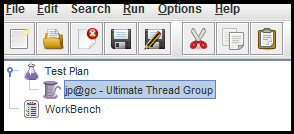
  1. Ultimate Thread Group
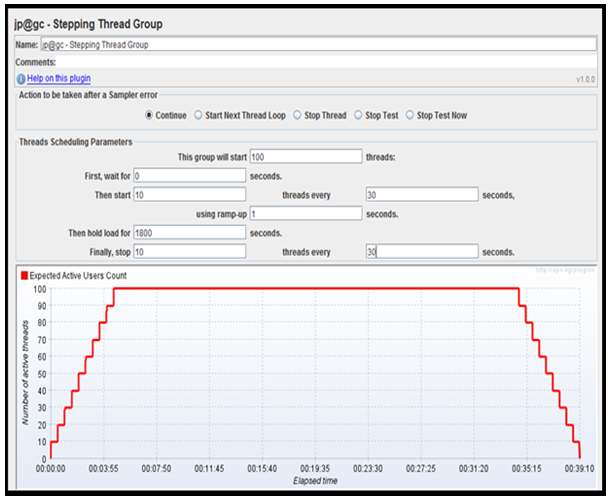
  2. Stepping Thread Group
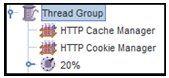
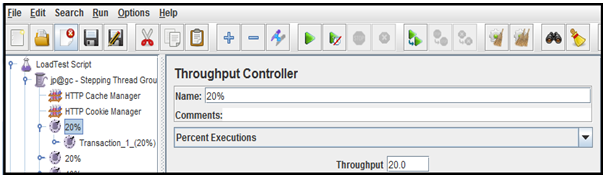
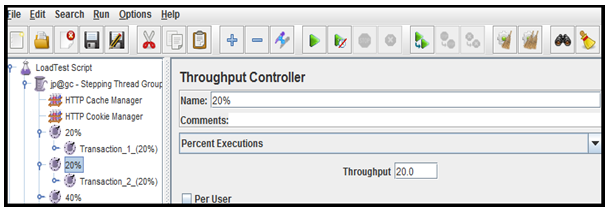
  3. Throughput Controller
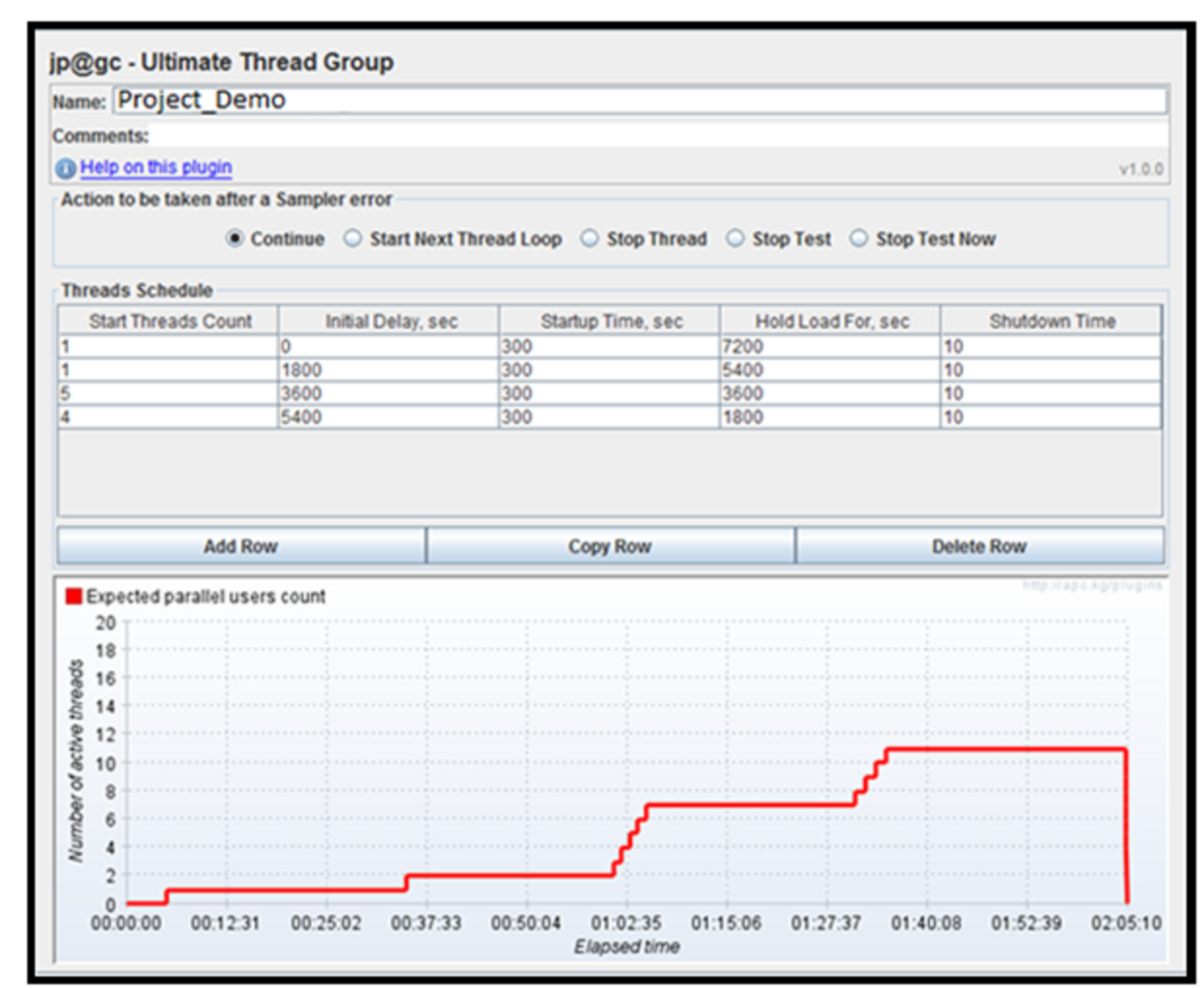
1.) Ultimate Thread Group


infinite number of schedule records
separate ramp-up time, shutdown time, flight time for each schedule record

Let’s configure Ultimate Thread Group as following:


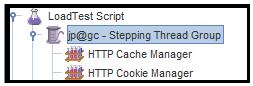
2.) Stepping Thread Group:


preview graph showing estimated load (see example screen below)
initial thread group delay to combine several thread group activities
increase load by portions of threads (users) with ramp-up period
configurable hold time after all threads started
decrease load by portions

Following screenshot shows Stepping Thread Group set to generate load increasing by 10 users each 2 minutes:


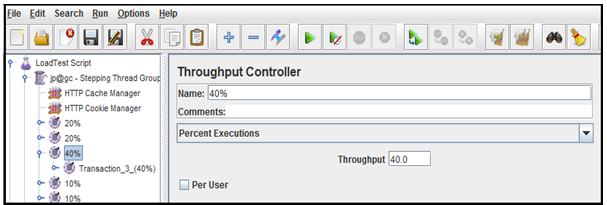
3.) Throughput Controller:


The Throughput Controller allows the user to control how often it is executed. There are two modes – percent execution and total executions. Percent executions cause the controller to execute a certain percentage of the iterations through the test plan. Total executions cause the controller to stop executing after a certain number of executions have occurred. Like the Once Only Controller, this setting is reset when a parent Loop Controller restarts.

Load Distribution (Transaction-1)


Load Distribution (Transaction -2)


Load Distribution (Transaction -3)


Load Distribution (Transaction -4)


Load Distribution (Transaction -5)


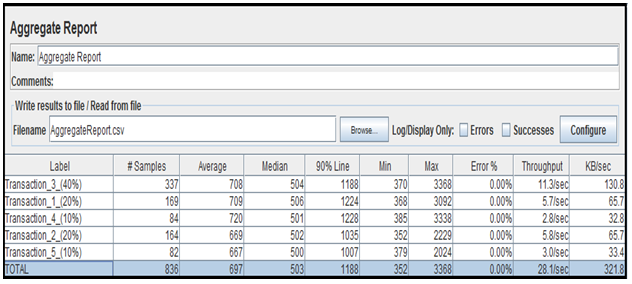
Sample out