VM STAT COMMANDS IN UNIX

Importance of vmstat command :

The first tool to use is the vmstat command, which quickly provides compact information about various system resources and their related performance problems.


kthr     memory             page              faults        cpu
----- ----------- ------------------------ ------------ -----------
 r  b   avm   fre  re  pi  po  fr   sr  cy  in   sy  cs us sy id wa
 1  0 22478  1677   0   0   0   0    0   0 188 1380 157 57 32  0 10
 1  0 22506  1609   0   0   0   0    0   0 214 1476 186 48 37  0 16
 0  0 22498  1582   0   0   0   0    0   0 248 1470 226 55 36  0  9

 2  0 22534  1465   0   0   0   0    0   0 238  903 239 77 23  0  0
 2  0 22534  1445   0   0   0   0    0   0 209 1142 205 72 28  0  0
 2  0 22534  1426   0   0   0   0    0   0 189 1220 212 74 26  0  0
 3  0 22534  1410   0   0   0   0    0   0 255 1704 268 70 30  0  0
 2  1 22557  1365   0   0   0   0    0   0 383  977 216 72 28  0  0

 2  0 22541  1356   0   0   0   0    0   0 237 1418 209 63 33  0  4
 1  0 22524  1350   0   0   0   0    0   0 241 1348 179 52 32  0 16
 1  0 22546  1293   0   0   0   0    0   0 217 1473 180 51 35  0 14

The vmstat command reports statistics about kernel threads in the run and wait queue, memory, paging, disks, interrupts, system calls, context switches, and CPU activity. The reported CPU activity is a percentage breakdown of user mode, system mode, idle time, and waits for disk I/O.

Note: If the vmstat command is used without any interval, then it generates a single report. The single report is an average report from when the system was started. You can specify only the Count parameter with the Interval parameter. If theInterval parameter is specified without the Count parameter, then the reports are generated continuously.


As a CPU monitor, the vmstat command is superior to the iostat command in that its one-line-per-report output is easier to scan as it scrolls and there is less overhead involved if there are many disks attached to the system. The following example can help you identify situations in which a program has run away or is too CPU-intensive to run in a multiuser environment.

This output shows the effect of introducing a program in a tight loop to a busy multiuser system. The first three reports (the summary has been removed) show the system balanced at 50-55 percent user, 30-35 percent system, and 10-15 percent I/O wait. When the looping program begins, all available CPU cycles are consumed. Because the looping program does no I/O, it can absorb all of the cycles previously unused because of I/O wait. Worse, it represents a process that is always ready to take over the CPU when a useful process relinquishes it. Because the looping program has a priority equal to that of all other foreground processes, it will not necessarily have to give up the CPU when another process becomes dispatchable. The program runs for about 10 seconds (five reports), and then the activity reported by the vmstat command returns to a more normal pattern.

Optimum use would have the CPU working 100 percent of the time. This holds true in the case of a single-user system with no need to share the CPU. Generally, if us +sy time is below 90 percent, a single-user system is not considered CPU constrained. However, if us + sy time on a multiuser system exceeds 80 percent, the processes may spend time waiting in the run queue. Response time and throughput might suffer.

To check if the CPU is the bottleneck, consider the four cpu columns and the twokthr (kernel threads) columns in the vmstat report. It may also be worthwhile looking at the faults column: 
cpu

Percentage breakdown of CPU time usage during the interval. The cpucolumns are as follows: 
us:The us column shows the percent of CPU time spent in user mode. A UNIX process can execute in either user mode or system (kernel) mode. When in user mode, a process executes within its application code and does not require kernel resources to perform computations, manage memory, or set variables. 

sy:The sy column details the percentage of time the CPU was executing a process in system mode. This includes CPU resource consumed by kernel processes (kprocs) and others that need access to kernel resources. If a process needs kernel resources, it must execute a system call and is thereby switched to system mode to make that resource available. For example, reading or writing of a file requires kernel resources to open the file, seek a specific location, and read or write data, unless memory mapped files are used.
id:The id column shows the percentage of time which the CPU is idle, or waiting, without pending local disk I/O. If there are no threads available for execution (the run queue is empty), the system dispatches a thread called wait, which is also known as the idle kproc. On an SMP system, onewait thread per processor can be dispatched. The report generated by the ps-k or -g 0 option) identifies this askproc or wait. If the ps report shows a high aggregate time for this thread, it means there were significant periods of time when no other thread was ready to run or waiting to be executed on the CPU. The system was therefore mostlyidle and waiting for new tasks. command (with the
wa:The wa column details the percentage of time the CPU wasidle with pending local disk I/O and NFS-mounted disks. If there is at least one outstanding I/O to a disk when wait is running, the time is classified as waiting for I/O. Unless asynchronous I/O is being used by the process, an I/O request to disk causes the calling process to block (or sleep) until the request has been completed. Once an I/O request for a process completes, it is placed on the run queue. If the I/Os were completing faster, more CPU time could be used. 

A wa value over 25 percent could indicate that the disk subsystem might not be balanced properly, or it might be the result of a disk-intensive workload. 
Number of kernel threads in various queues averaged per second over the sampling interval. The kthr columns are as follows: 
r:Average number of kernel threads that are runnable, which includes threads that are running and threads that are waiting for the CPU. If this number is greater than the number of CPUs, there is at least one thread waiting for a CPU and the more threads there are waiting for CPUs, the greater the likelihood of a performance impact. 
b:Average number of kernel threads in the VMM wait queue per second. This includes threads that are waiting on filesystem I/O or threads that have been suspended due to memory load control. 
If processes are suspended due to memory load control, the blocked column (b) in the vmstat report indicates the increase in the number of threads rather than the run queue. 
p:For vmstat -I The number of threads waiting on I/Os to raw devices per second. Threads waiting on I/Os to filesystems would not be included here. 
faults
Information about process control, such as trap and interrupt rate. Thefaults columns are as follows: 
in:Number of device interrupts per second observed in the interval. Additional information can be found in Assessing disk performance with the vmstat command. 

sy:The number of system calls per second observed in the interval. Resources are available to user processes through well-defined system calls. These calls instruct the kernel to perform operations for the calling process and exchange data between the kernel and the process. Because workloads and applications vary widely, and different calls perform different functions, it is impossible to define how many system calls per-second are too many. But typically, when the sy column raises over 10000 calls per second on a uniprocessor, further investigations is called for (on an SMP system the number is 10000 calls per second per processor). One reason could be "polling" subroutines like the select() subroutine. For this column, it is advisable to have a baseline measurement that gives a count for a normal sy value. 

cs:Number of context switches per second observed in the interval. The physical CPU resource is subdivided into logical time slices of 10 milliseconds each. Assuming a thread is scheduled for execution, it will run until its time slice expires, until it is preempted, or until it voluntarily gives up control of the CPU. When another thread is given control of the CPU, the context or working environment of the previous thread must be saved and the context of the current thread must be loaded. The operating system has a very efficient context switching procedure, so each switch is inexpensive in terms of resources. Any significant increase in context switches, such as when cs is a lot higher than the disk I/O and network packet rate, should be cause for further investigation
JVM MONITORING

Acronym for Java Virtual Machine. An abstract computing machine, or virtual machine, JVM is a platform-independent execution environment that converts Java bytecode into machine language and executes it. Most programming languages compile source code directly into machine code that is designed to run on a specific microprocessor architecture or operating system, such as Windows or UNIX. A JVM -- a machine within a machine -- mimics a real Java processor, enabling Java bytecode to be executed as actions or operating system calls on any processor regardless of the operating system. 

For example, establishing a socket connection from a workstation to a remote machine involves an operating system call. Since different operating systems handle sockets in different ways, the JVM translates the programming code so that the two machines that may be on different platforms are able to connect.


JVM consist of following components:-

1)Byte-code verifier :- It verify the byte-code ,it check's for unusual code.

2)Class Loader :- After verifying Class Loader will load the byte-code into the memory for execution.

3)Execution engine :-
It further consist of 2 parts :-
a)Interpreter :- It interpret the code & run.
b)JIT(Just-in-Time Interpreter)
JVM Hotspot defines when to use Interpreter or JIT.

4)Garbage Collector:- It periodically check for the object on heap , whose link is broken
So it can collect the garbage from Heap.

5) Security Manager :- It constantly monitors the code.It is 2nd level of security.[1st level is Byte-code verifier ].

How can I take a thread dump and heap dump automatically when my CPU utilization is above 80%?

Thread dumps are vital artifacts to diagnose CPU spikes, deadlocks, memory problems, unresponsive applications, poor response times, and other system problems. There are great online thread dump analysis tools such as http://fastthread.io/ that can analyze and spot problems. But to those tools you need provide proper thread dumps as input. Thus in this article, I have documented 7 different options to capture thread dumps.

1. jstack

‘jstack’ is an effective command line tool to capture thread dumps. The jstack tool is shipped in JDK_HOME\bin folder. Here is the command that you need to issue to capture thread dump:
jstack -l  <pid> > <file-path>
Where:
pid: is the Process Id of the application, whose thread dump should be captured
file-path: is the file path where thread dump will be written in to.
Example:
jstack -l 37320 > /opt/tmp/threadDump.txt
As per the example thread dump of the process would be generated in /opt/tmp/threadDump.txt file.
Jstack tool is included in JDK since Java 5. If you are running in older version of java, consider using other options

2. Kill -3

In major enterprises for security reasons only JREs are installed in production machines. Since jstack and other tools are only part of JDK, you wouldn’t be able to use jstack. In such circumstances, ‘kill -3’ option can be used.
kill -3 <pid>
Where:
pid: is the Process Id of the application, whose thread dump should be captured
Example:
Kill -3 37320
When ‘kill -3’ option is used thread dump is sent to standard error stream. If you are running your application in tomcat, thread dump will be sent in to <TOMCAT_HOME>/logs/catalina.out file.
Note: To my knowledge this option is supported in most flavors of *nix operating systems (Unix, Linux, HP-UX operating systems). Not sure about other Operating systems.

3. JVisualVM

Java VisualVM is a graphical user interface tool that provides detailed information about the applications while they are running on a specified Java Virtual Machine (JVM). It’s located in JDK_HOME\bin\jvisualvm.exe. It’s part of Sun’s JDK distribution since JDK 6 update 7.s
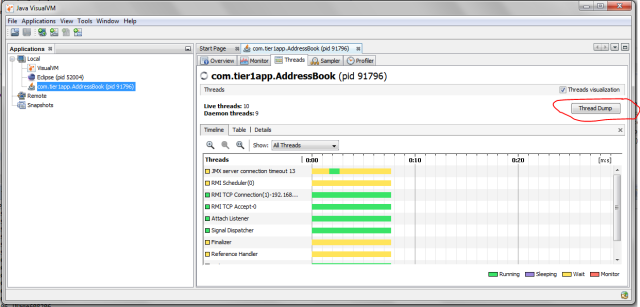
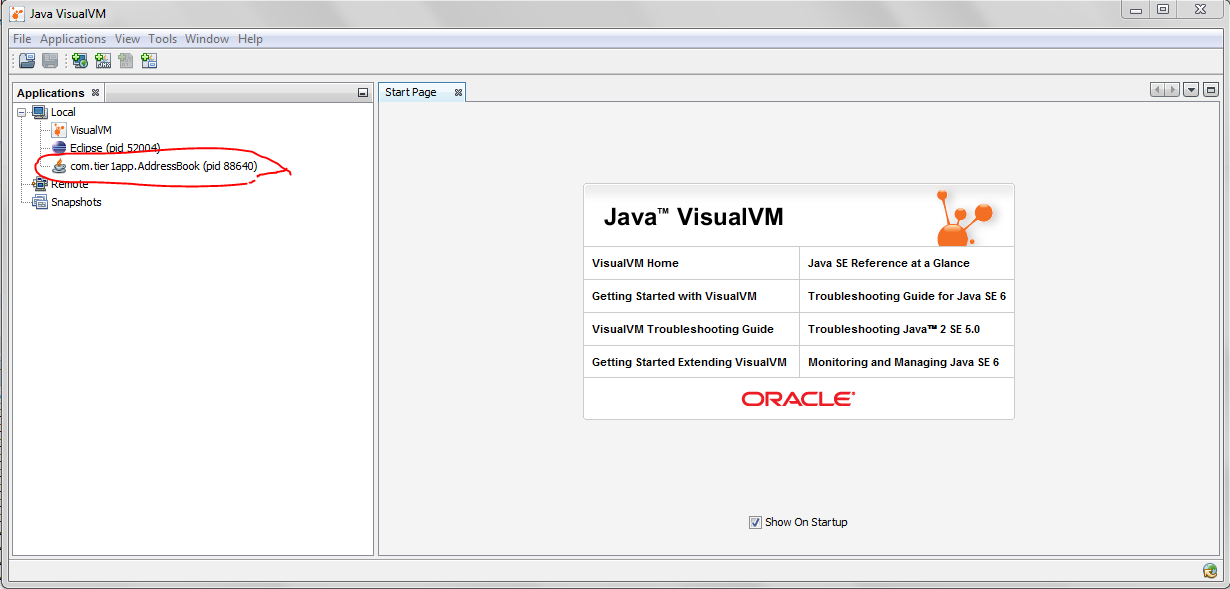
Launch the jvisualvm. On the left panel, you will notice all the java applications that are running on your machine. You need to select your application from the list (see the red color highlight in the below diagram). This tool also has the capability to capture thread dumps from the java processes that are running in remote host as well.
Fig: Java Visual VMFig: Java Visual VM
Now go to the “Threads” tab. Click on the “Thread Dump” button as shown in the below image. Now Thread dumps would be generated.
Image title
Fig: Highlighting "Thread Dump" button in the “Threads” tab

4. JMC

Java Mission Control (JMC) is a tool that collects and analyze data from Java applications running locally or deployed in production environments. This tool has been packaged into JDK since Oracle JDK 7 Update 40. This tool also provides an option to take thread dumps from the JVM. JMC tool is present in JDK_HOME\bin\jmc.exe
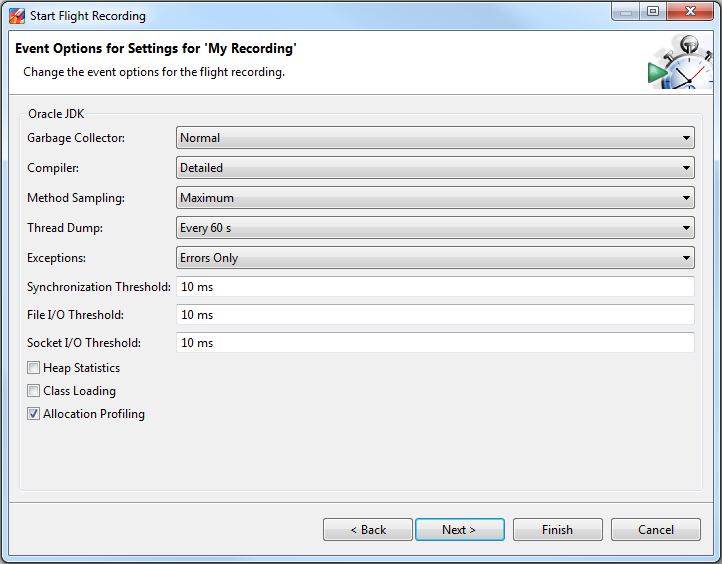
Once you launch the tool, you will see all the Java processes that are running on your local host. Note: JMC also has the ability to connect with java processes running on a remote host. Now on the left panel click on the “Flight Recorder” option that is listed below the Java process for which you want to take thread dumps. Now you will see the “Start Flight Recording” wizard, as shown in the below figure.
Image titleFig: Flight Recorder wizard showing ‘Thread Dump’ capture option.
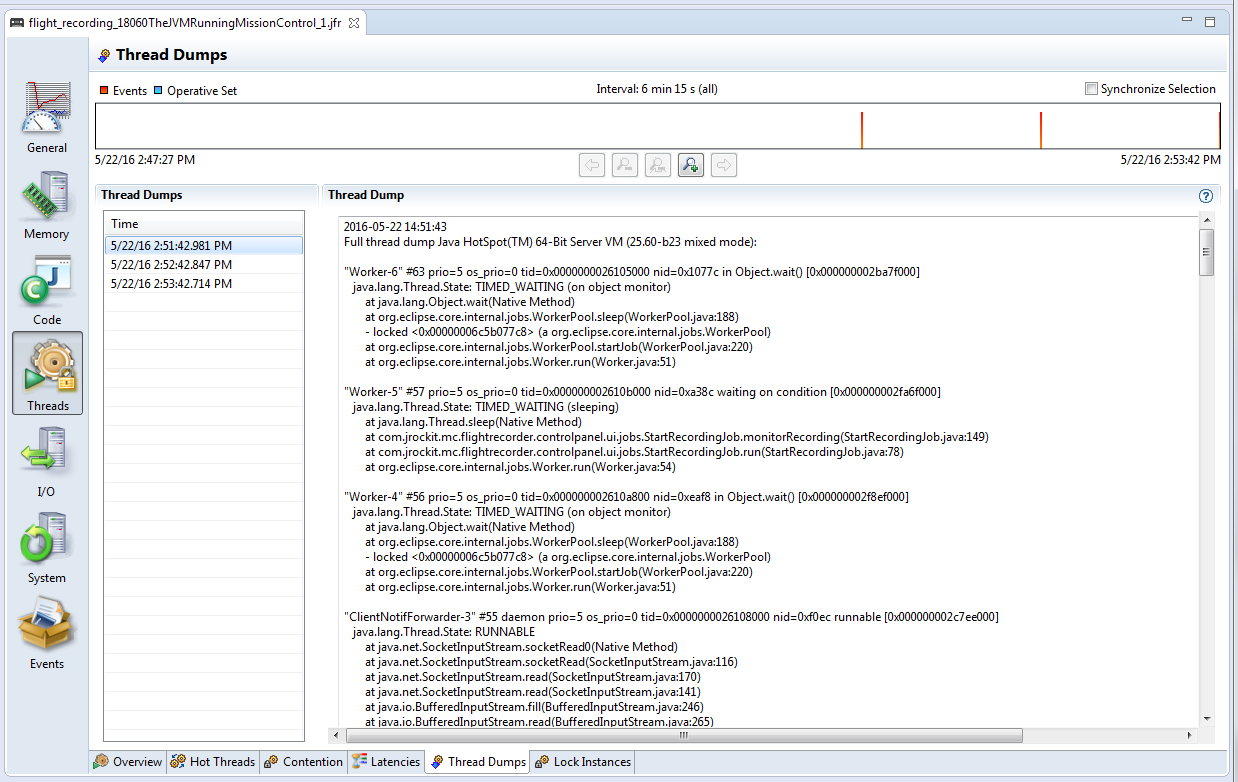
Here in the “Thread Dump” field, you can select the interval in which you want to capture thread dump. As per the above example, every 60 seconds thread dump will be captured. After the selection is complete start the Flight recorder. Once recording is complete, you will see the thread dumps in the “Threads” panel, as shown in the figure below.
Image title
Fig: Showing captured ‘Thread Dump’ in JMC.

5. Windows (Ctrl + Break)

This option will work only in Windows Operating system.
  • Select command line console window in which you have launched application.
  • Now on the console window issue the “Ctrl + Break” command.
This will generate thread dump. The thread dump will be printed on the console window itself.
Note 1: in several laptops (like my Lenovo T series) “Break” key is removedJ. In such circumstances you have to google to find the equivalent keys for the “Break”. In my case it turned out that “Function key + B” is the equivalent of “Break” key. Thus I had to use “Ctrl + Fn + B” to generate thread dumps.
Note 2: But one disadvantage with this approach is thread dump will be printed on the windows console itself. Without getting the thread dump in a file format, it’s hard to use the thread dump analysis tools such as http://fasthread.io. Thus when you launch the application from the command line, redirect the output a text file i.e. Example if you are launching the application “SampleThreadProgram”, you would issue the command:
java -classpath . SampleThreadProgram
Instead launch the SampleThreadProgram like this
java -classpath . SampleThreadProgram > C:\workspace\threadDump.txt 2>&1
Thus when you issue “Ctrl + Break” thread dump will be sent to C:\workspace\threadDump.txt file.

6. ThreadMXBean

Since JDK 1.5 ThreadMXBean has been introduced. This is the management interface for the thread system in the Java Virtual Machine. Using this interface also you can generate thread dumps. You only have to write few lines of code to generate thread dumps programmatically. Below is a skeleton implementation on ThreadMXBean implementation, which generates Thread dump from the application.
    public void  dumpThreadDump() {
        ThreadMXBean threadMxBean = ManagementFactory.getThreadMXBean();
        for (ThreadInfo ti : threadMxBean.dumpAllThreads(true, true)) {
            System.out.print(ti.toString());
        }
    }

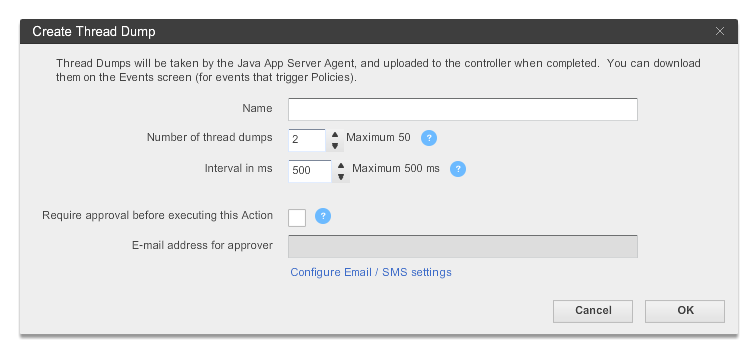
7. APM Tool – App Dynamics

Few Application Performance Monitoring tools provide options to generate thread dumps. If you are monitoring your application through App Dynamics (APM tool), below are the instructions to capture thread dump:
1. Create an action, selecting Diagnostics->Take a thread dump in the Create Action window.
2. Enter a name for the action, the number of samples to take, and the interval between the thread dumps in milliseconds.
3. If you want to require approval before the thread dump action can be started, check the Require approval before this Action checkbox and enter the email address of the individual or group that is authorized to approve the action. See Actions Requiring Approval for more information.
4. Click OK.
Image title
Fig: App dynamics thread dump capturing wizard

8. JCMD

The jcmd tool was introduced with Oracle’s Java 7. It’s useful in troubleshooting issues with JVM applications. It has various capabilities such as identifying java process Ids, acquiring heap dumps, acquiring thread dumps, acquiring garbage collection statistics, ….
Using the below JCMD command you can generate thread dump:
jcmd <pid> Thread.print > <file-path>
where
pid: is the Process Id of the application, whose thread dump should be captured
file-path: is the file path where thread dump will be written in to.
Example:
jcmd 37320 Thread.print > /opt/tmp/threadDump.txt
As per the example thread dump of the process would be generated in /opt/tmp/threadDump.txt file.

Conclusion

Even though 7 different options are listed to capture thread dumps, IMHO, 1. 'jstack' and  2. 'kill -3' are the best ones. Because they are:
a. Simple (straightforward, easy to implement)
b. Universal (works in most cases regardless of OS, Java Vendor, JVM version, etc.)

Run Time Settings in Load runner

In general load runner runtime settings plays a crucial role in Vugen scripting and scenario running.This is the heart of the Load runner.The run time settings are
General
  • Run Logic 
  • Pacing 
  • Log 
  • Think Time 
  • Additional attributes 
  • Miscellaneous 
Network
  • Speed simulation
Browser
  • Browser emulation
Internet Protocol
  • Proxy
  • preferences
  • download filters
  • Content check
Data Format Extension
  •  Configuration

General 
Run Logic 


Whenever I am using a Vuser type that allows multiple actions in a single script, I will create a separate action for each business process and put appropriate percentage weightings on each action. It is very unusual to have to do anything more complicated than this. I don’t usually use the “sequential” option or create blocks unless I need to have fractional percentage weightings for a business process.
Percentages must be integer values, so to run a business process 0.1% of the time you could create a block that runs 1% of the time, and put an action in the block that runs 10% of the time.
It’s also rare to set a script in a scenario to run for a specified number of iterations (mostly done by time or set to run indefinitely). Generally “number of iterations” is only used when running the script in VuGen. 

Pacing :


“As soon as the previous iteration ends” is used when running in VuGen or when loading/verifying data. Do not use this for load testing
I have never seen the point of the “After the previous iteration ends” option. Why would you want to run an unknown number of transactions per hour against the system?
Don’t use the “At fixed intervals”. If something causes your users to become “in step”, they will tend to stay that way and continue to all hit the server at the same time.
“At random intervals” is definitely the way to go. Obviously for your users to create a certain number of orders per hour the iteration time must average to 3600/num iterations in an hour. Do not make the lower boundary value any bigger than the maximum time it takes to complete the business process, or you will end up creating less transactions per hour than you intend to. 


you can check how to calculate pacing according to the requirement from this blog also.

Log :

Enable logging:once you verify that your script is functional,disable logging to conserve resources.
Logging creates additional overhead on your load generators, and can create huge log files. 


 log absolutely everything when debugging in VuGen.
When running the script as part of a scenario, I leave extended logging on but change the logging to “Send messages only when an error occurs”. This gives a little more information than turning logging off entirely, and won’t create any additional overhead while everything is running smoothly (and if the system is not running smoothly you are going to need to stop the test and investigate anyway). 


Standard log:sends a subset of functions and messages sent during script execution to a log.The subset depends on the Vuser type.

Think Time:


Just like the pacing setting, I think that it is a good idea to put some randomness in your think times.
I use a random percentage of 50-150% of recorded think times.
Use “Ignore think time” if you are debugging in VuGen or if you are loading/verifying data. 


Additional attributes :


This option is ignored by most people. It is used to create a parameter with a given value without having to edit the script (as runtime settings can be overridden in the Controller).
In the screenshot I have created a parameter of ServerName with the address of the test envioronment. If you were testing in more than one test environment at a time, this would make save some time. 


Miscellaneous :


Continue on error is generally only going to be used if you have written code to do something when you encounter an error. Usually the default behaviour of ending the current iteration and then starting the next one is sufficient). I don’t advise anyone to try to write a script that handles errors in the same way as a real user because it will create a lot of additional work for very little benefit, but doing something simple like writing some useful information to the logs and then calling lr_exit(LR_EXIT_ACTION_AND_CONTINUE , LR_FAIL) can be useful.
“Fail open transactions on lr_error_message” should always be ticked. If you are raising an error, you should fail the transaction step that you are performing.
“Generate snapshot on error” is useful. If it is a web script, any error messages should be added to your content check rules.
Run your virtual user as a thread unless you have code that is not threadsafe or there is some other reason to run your virtual users as a process. The overall memory footprint on your load generators will be higher if you run as a process.
I never use the “Define each action as a transaction” option. If I want a transaction in my script I will add it myself with lr_start_transaction.
I never use “Define each step as a transaction” either. If it is a web script, I can use the transaction breakdown graph to get this information, otherwise I will add the transactions myself. 


Network :


Not all vuser types have this option available.
Most of the time my virtual users will use the maximum bandwidth.
If I want to emulate users with bandwidth constraints, I will do this in a separate scenario.
Google calculator is handy to calculate bitrates if your bitrate is not available from the drop-down list e.g./ “256 Kbps in bps”
All of the following settings only apply to web-based scripts. Each vuser type will have its own runtime setting options. It is important to know what they mean and how they will influence your
test results before running any tests that you plan to report on. 


Browser

Browser Emulation: 


Some people get confused by the User-Agent (browser to be emulated) setting. If 90% of your users use Internet Explorer 6.0 and the rest use Firefox 1.5, you don’t have to change the runtime settings for your users to match this. All it changes is the string that is sent in the “User-Agent” field of your HTTP requests. This is completely pointless unless your application has been written to serve different content to different browsers based on the User-Agent field.

Internet Protocol:


Proxy : 


Generally people won’t be using your web applications through your proxy server, so it shouldn't be part of your test either.
If you start getting errors that are due a proxy server rather than the system under test, it will just confuse the people who have to fix the problem.
A proxy server will also make IP-based load balancing ineffective.
If it’s an intranet application and everyone will be using the application through the company’s proxy, then the proxy server should be explicity declared to be in scope for your load test. You should make sure that you have an identical proxy server for your test environment, or that you have permission to be generating load on a piece of Production infrastructure. 


Preferences :


These settings are default values specified by HP, rather than being inherited from the web browser that is installed on your workstation. Generally you will not need to change them, but be aware that they are here. 

Download Filters: 


Download filters are a quick way of preventing your scripts from downloading content from certain URLs or hosts/domains.
I generally use this feature when the web application in the test environment contains third-party images used for tracking website usage (e.g. images from Webtrends or Red Sheriff etc).
I think it is better to specify which hosts your script is allowed connect to, rather than which hosts your script can’t connect to (because it’s easy to miss one accidentally, or the application may change and refer to a new third-party domain).
Use web_add_auto_filter if you want to specify this in your script rather than your runtime settings.
Data Format Extension:


Configuration :


A LoadRunner feature that has made my life a lot easier has been ContentCheck rules, which are available in the script runtime settings. If you are using a web-based vuser type, you can configure your Load Runner script to search through all returned pages for strings that match known error messages. 

Using web_reg_find functions is fine, but when you get an error LoadRunner reports it as “failed to find text” instead of something more descriptive. 

I will always create rules for any error messages I find during scripting and, if I receive an error while running a scenario, I will add the error message from the snapshot in the scenario results directory (the snapshot on error feature is very useful). 

All this is pretty obvious if you have taken the time to explore LoadRunner’s features or you have attended a Mercury training session, but I recommend taking things a step further. 
Ask your developers for a list of all the error messages that the application can throw. This should be easy for them to provide if the application is well designed and stores all the message in some kind of message repository instead of sprinkling them throughout the source code. 
Include error message for functional errors that you are likely to encounter. Creating a rule for “incorrect username or password” may save someone 20 minutes of investigation when they first run the script after the database has been refreshed. 

If you prefer to have error message you are checking for in the script (where you can add comments to them) instead of the runtime settings, you can use the web_global_verification function instead. The only difference between the two is the error message that LoadRunner will include in its log: 

Action.c(737): Error -26368: “Text=A runtime error occurred” found for web_global_verification (“ARuntimeErrorOccurred”) (count=1), Snapshot Info [MSH 0 21] 

…compared to: 

Action.c(737): Error -26372: ContentCheck Rule “ARuntimeErrorOccurred” in Application “Webshop” triggered. Text “A runtime error occurred” matched (count=1), Snapshot Info [MSH 0 21]

Creating Dynamic itemdata in Web_submit_data in load runner

I was working on a project where there was a scenario of searching for a course by its first name or wild cards. The search returns different number of results for different queries. This request is followed by another web_submit_data where the ITEMDATA depends on number of search results.

There are three dynamic variables here – length of the course variable, results returned and the third one being the ITEMDATA of the request itself.

The solution is to build dynamic data on the fly and create a web_custom_request for the web_submit_data

The following function will build the item data -

const char* BuildItemData(int pageSize,const char*ItemDataStart,const char*ItemDataEnd, int lengthOfCourseVar, const char* ArrayName){

char* ItemData;

int iCount,lengthOfOneItem;

lengthOfOneItem = lengthOfCourseVar+strlen(ItemDataStart)+strlen(ItemDataEnd);

ItemData = (char*)malloc((pageSize*(lengthOfOneItem))*sizeof(char));

ItemData[0]=”;

for(iCount=1;iCount<=(pageSize);iCount++)

{

strcat(ItemData,ItemDataStart);

strcat(ItemData,lr_paramarr_idx(ArrayName,iCount));

strcat(ItemData,ItemDataEnd);

}

return ItemData;

}

I changed the web_submit_data to web_custom_request and used the string output as a parameter like this:

lr_save_string( BuildItemData(lr_paramarr_len(“cor_Arr_ClassIDs”),”offId[]=class”,”&”,strlen(lr_paramarr_idx(“cor_Arr_ClassIDs”,1)),”cor_Arr_ClassIDs”),
“ItemDataOnTheFly” );


web_custom_request(“xxxxxxx.aspx”,

“URL=https://{par_Environment_URL}/xxxxxx/xxxxxx.aspx”,

“Method=POST”,

“TargetFrame=”,

“Resource=0″,

“RecContentType=text/html”,

“Referer=https://{par_Environment_URL}/xxx/xxx/xxx/xxxx/xx/xxxxxx?xxxxxx={par_Location}”,

“Snapshot=t12.inf”,

“Mode=HTML”,

“EncType=application/x-www-form-urlencoded; charset=utf-8″,

“Body={ItemDataOnTheFly}&lrnid=xxxxx/{par_UserID}”,

LAST);