How to configure Dynatrace with Loadrunner 12.55?

Dynatrace Monitor

The Dynatrace monitor provides information from the Dynatrace server about monitored applications.
In this topic:

Dynatrace dashboards and dashlets

Using Dynatrace's dashboards and dashlets you can get insights into your full application stack, in the form of deep transaction tracing, synthetic monitoring, real user monitoring, and network monitoring.
A dashboard represents a specific view of one or more Dynatrace data sources. A dashboard is comprised of dashlets, the building blocks of a dashboard that contain specific types of data (in the form of a graph or data tables).
Note: Only dashlets that are represented as graphs in Dynatrace are available in Performance Center during the performance test run.

Set up the Dynatrace monitor

  1. Prerequisites: The Dynatrace monitor must be installed on the AUT server.
  2. In Controller, in the Run tab, add the Dynatrace monitor. Available graphs Dynatrace graphs > Dynatrace.
  3. Right-click the Dynatrace monitor and click Add measurements.
  4. In the Dynatrace dialog box, click Add to add the monitor, and enter the Dynatrace server details:
    Note: In order to connect to a Dynatrace server with specific credentials, you must first stop the Dynatrace monitor and remove all of its counters.
    UI ElementDescription
    Name
    The name of the Dynatrace server.
    Port
    The Dynatrace port.
    Default: 8021
    Use Secure HTTP
    Uses a secure HTTP connection to the Dynatrace server.
    User Name
    Instructs LoadRunner to use the name of the Dynatrace account.
    PasswordInstructs LoadRunner to use the password for the Dynatrace account.
    Click OK.
For detailed information on the performance measurements that Dynatrace can monitor, refer to the Dynatrace documentation.

Load Runner Tips and Tricks

1. Consult your developer if you need help to identify the protocol used by the application.

2. Some other applications, such as antivirus, VPN’s, firewall, and so on may interfere with the recorder. In case of problems, always look to see what is installed on the machine and try to disable software that looks like it is interfering with socket level data.

3. Delete (or comment out) all the “web_add_cookie” statements in the script. Some applications use explicit cookies to keep track of users. Therefore cookies statements have to be commented out otherwise old cookies are sent to the server again and it will not work.

4. Delete all the web_url (…..) statements in start of the script, which are downloading the windows updates or something like that.

5. If you are using the Multiple Protocol recorder, you can use this option of Tools →“Regenerate Vuser” to regenerate the script, if the earlier modified script is not working fine.

6. Sometimes, you will encounter cases where the Web recorder (Single and Multi) records some initial login steps but nothing else after that, even though it is still using the HTTP protocol. This can happen if the application is dependent on the cache in some way. By default, LoadRunner recording will disable the cache.

To set LoadRunner not to interfere with the cache setting, change the following in registry:

a. Go to Start → Run, and enter regedit to open the registry editor.

b. Navigate to HKEY_CURRENT_USER\Software\Mercury Interactive\ LoadRunner\ Protocols\ HTTP\Analyzer

c. Set AddNoCacheHeaderToHtml=0.

7. The following are limitations of the Single Protocol Web recorder. If any of the following is causing a problem, you are recommended to switch to use the Multiple Protocol web recorder to record.

Note: All the issues below can be resolved with Multiple Protocol Web recorder.

a. While recording, the Single Protocol Web recorder will redirect the client requests to a local proxy, at localhost: 7777. For such, make sure that you have the permission to change the LAN settings of the machine.

To verify:

i. Open Internet Explorer and go to Tools → Internet Options →Connections → LAN Settings.
ii. Make sure that you can modify the entries here.

b. The Single Protocol Web recorder obtains the proxy setting from the HKEY_CURRENT_USER registry hive. Verify the following to make sure that it is set up correctly:

i. Go to Start → Run, and enter regedit to open the registry editor.
ii. Navigate to HKLM\SOFTWARE\Policies\Microsoft\Windows\CurrentVersion\InternetSettings.
iii. Verify the non-default key, ProxySettingsPerUser. If the
iv. ProxySettingsPerUser value exists and has a value data of 0 (zero), set it to

1. It is okay if you do not have that registry key. As long as ProxySettingsPerUser is not set to one, proxy settings will be obtained from the HKEY_CURRENT_USER registry hive.

1. To make permanent change in default settings in VuGenerator:

To keep from having to change the run-time settings every time that you create a new script, here is an easy way to save your own default settings.
1. Create a new script

2. Make the setting changes that you need to make.

3. Save the script

4. Now, copy the default.cfg file out of the directory of the script file that you just created to the Program Files\Mercury Interactive\LoadRunner\template\{dir}.

The {dir} is whatever directory that you are creating your scripts from. For example, a Web/HTML vuser directory is the \qtweb\ directory. You can also change the init.c, end.c, or action.c if you seem to always have to make changes to these files every time you create a new script.

Set up LoadRunner to run nightly

To get LoadRunner to run nightly required two things. The first was a batch file that would execute LoadRunner and then invoke the analysis and the second was how to schedule the execution on the controller.

The batch file to run LoadRunner at night and to save the results in a specific directory for that nights run is shown below:REM Batch to run nighlty performance test REM REM Thanks to Simon Shepard at http://www.ss64.com for date code REM Calculate today date FOR /f "tokens=6-8 delims=/ " %%G IN ('NET TIME \\%computername%') DO ( SET _mm=%%G SET _dd=%%H SET _yy=%%I ) REM Run LoadRunner "C:\...\bin\Wlrun.exe" -Run -TestPath "P:\Projects\...\PeakHourSmall.lrs" -ResultLocation "P:\...\Results" -ResultCleanName Night-%_dd%-%_mm%-%_yy% REM Run analysis "C:\...\bin\AnalysisUI.exe" -RESULTPATH "P:\...\Night-%_dd%-%_mm%-%_yy%\Night-%_dd%-%_mm%-%_yy%.lrr"

To get the batch file to run as a scheduled task took longer than expected due to some restriction on the PC at work. To overcome this I had to use schtask.exe to schedule the batch.schtasks.exe /create /SC daily /ST 01:50:00 /TR "P:\...\Nightly.bat" /TN RunPerfTest

The nightly LoadRunner test now runs at 1:50 in the morning and the results are waiting when I arrive in the morning.

Saving results of SQL query to a LoadRunner parameter

Here is an example of how to save the results of a query to a loadrunner parameter. In this example I want to know the prod_code for a particular user whos user name is held in the parameter pUserID. To do this you have to add a lrd_ora8_save_col statement BEFORE the fetch statement.

lrd_ora8_handle_alloc(OraEnv1, STMT, &OraStm7, 0);
lrd_ora8_stmt(OraStm7, "select indiv,prod_code,last_up_seq from product_users"
"where indiv_uid = '{pUserID}'", 1, 32, 0);
lrd_ora8_exec(OraSvc1, OraStm7, 0, 0, &uliRowsProcessed, 0, 0, 0, 0, 0);
lrd_ora8_bind_col(OraStm7, &OraDef9, 1, &INDIVD10, 0, 0);
lrd_ora8_attr_set(OraDef9, CHARSET_FORM, "1", -1, 0);
lrd_ora8_bind_col(OraStm7, &OraDef10, 2, &PROD_CODE_D11, 0, 0);
lrd_ora8_attr_set(OraDef10, CHARSET_FORM, "1", -1, 0);
lrd_ora8_bind_col(OraStm7, &OraDef11, 3, &LAST_UPE_SEQ_D12, 0, 0);
lrd_ora8_save_col(OraStm7, 2, 1, 0, "prod_code");
lrd_ora8_fetch(OraStm7, -1, 15, &uliFetchedRows, PrintRow8, 2, 0, 0);

lrd_handle_free(&OraStm7, 0);

lr_message("The users product code is %s",lr_eval_string("{prod_code}"));

The second and third arguementare the column and row number with the 1,1 returns the value in the first column and the first row, The value is stored in the last arguement. Note that if no value is returned the error will be an unhelpful Parameter is not initialized.

LoadRunner Analysis Importing PerfMon Data

I have recently imported some perfmon data into LoadRunner analysis. First of all I had to use perfmon’s relog command to convert the data into a CSV file.

I then imported this using Tools -> External Monitors -> Import Data. Which leads you to the following dialogue box.


I think this is because I had selected the Time Zone as . So I reloged the data to match the start and end time of the LR results and imported again with the Time Zone set to 

Expanding LoadRunner functions

I quickly wanted to get some lr_status message outputted to the console for every LoadRunner transaction in a script, I basically wanted to insert a status message every time the lr_start_transaction was called to output the transaction name to the console. however, it was a large script and I didn’t want to make any code changes to the load runner script. So I wanted to expand the existing function. The code below was added into the vinit section.

void my_start_transaction (char *name)
{
lr_vuser_status_message("Starting Transaction %s",name);
lr_start_transaction(name);
return ;
};
vuser_init()
{

#define lr_start_transaction(x) my_start_transaction(x)

return 0;
}


LoadRunner Function Override

Creating LoadRunner Dynamic Transaction Names

Today I wanted to use parameterized transaction names within a LoadRunner script. As I thought that a particular transaction was failing after a particular number of iterations. Luckily this was pretty simple in LoadRunner. It was just a case of using lr_eval_string in the call to the transaction wrapper.

lr_start_transaction(lr_eval_string("Do Something {pIteration}"));

lr_end_transaction(lr_eval_string("Do Something {pIteration}"), LR_AUTO);

You have to be careful above to make sure that start and end transaction names are the same. To overcome that problem I created a string variable to hold the LoadRunner transaction name.

char sTranName[20];

sprintf(sTranName,lr_eval_string("TransactionA_{pIteration}"));
lr_start_transaction(sTranName);

lr_end_transaction(sTranName,LR_AUTO);

Recording LoadRunner Oracle Forms Object Names

This week I am perforamance testing an Oralce Forms applicaiton. When recording a loadrunner scripts for Oracle forms (NCA protocol) you will want the object / deverlopers name to appear in the scripts to aid readability.

To do this you need to ammend the URL to incude ?play=&record=names. So for the user you need to change the profile. You will need SYSADMIN privileges to do this.

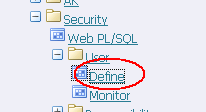
So login and navigate down the tree System Administrator -> Security -> Define


Next select Profile: System


Search for the user you are using for recording and ICX: Forms Launcher


Amend the URL with ?play=&record=names”


Save and then you are good to record the object names with that use.

Excel Macro to read a LoadRunner scenario file

Doing some performance testing on site this week where there is only one LoadRunner controller. That was in use and I wanted to see the number of virtual users for each script set up in the Loadrunner scenario file (.lrs). So I wrote this Excel Macro to provide the data.

It prompts for the scenario file (.lrs) and then parses the file to list out the group, script name and the vuser count.

This is a bit of quick and dirty code and I am sure it will develop as it sees different scenarios but I thought I would share it with you.

Sub ReadALRScenario()

Dim sFileName As String
Dim iFileNum As Integer
Dim sBuf As String

' edit this to your defaul directory:
sFileName = "C:\Users\pengland\Documents\Projects\"

NewFN = Application.GetOpenFilename(FileFilter:="LoadRunner Scenario, *.lrs", Title:="Please select a file")
If NewFN = False Then
' User Pressed Cancel
MsgBox "You need to select a valid file"
Exit Sub
Else
sFileName = NewFN
End If

' does the file exist? simpleminded test:
If Len(Dir$(sFileName)) = 0 Then
MsgBox ("Can't find file")
Exit Sub
End If

Range("A1").Select
Row = 0

iFileNum = FreeFile()
Open sFileName For Input As iFileNum

Do While Not EOF(iFileNum)
Line Input #iFileNum, sBuf
'Now you have the next line of the file in sBuf
'Capture UiName
If InStr(sBuf, "UiName") > 0 Then
UniName = Mid(sBuf, 8, Len(sBuf) - 7)
End If

If InStr(sBuf, ".usr") > 0 Then
LastOcc = InStrRev(sBuf, "\") + 1
Length = Len(sBuf) - InStrRev(sBuf, "\") - 4
ActiveCell.Offset(Row, 0) = UniName
ActiveCell.Offset(Row, 1) = Mid(sBuf, LastOcc, Length)
ActiveCell.Offset(Row, 2) = -1

Row = Row + 1
End If
Loop

' close the file
Close iFileNum

'For Each Script count number of =script names in thr file

NumOfScripts = Row - 1
Row = 0

Do While Row 0 And (Len(sBuf) - 1) = Len(SearchString) Then
ActiveCell.Offset(Row, 2) = ActiveCell.Offset(Row, 2) + 1
End If
Loop

' close the file
Close iFileNum

Row = Row + 1
Loop

End Sub

Script to delete unwanted LoadRunner vugen files

Today it was quiet on the performance testing front so I had time to create a vbscript to delete unwanted loadrunner vugen files.

The script is run from the cscript command and will be prompted for the folder for your loadrunner vugen script. It deletes .log, .idx and .txt files and make sure you have closed vugen before you run the script.


On Error Resume Next
Const WINDOW_HANDLE = 0
Const BIF_EDITBOX = &H10
Const BIF_NONEWFOLDER = &H0200
Const BIF_RETURNONLYFSDIRS = &H1
Set objShell = CreateObject("Shell.Application")
Set wshShell = CreateObject("WScript.Shell")
Set objFSO = CreateObject("Scripting.FileSystemObject")
'**Browse For Folder To Be Processed
strPrompt = "Please select the folder to process."
intOptions = BIF_RETURNONLYFSDIRS + BIF_NONEWFOLDER + BIF_EDITBOX
strFolderPath = Browse4Folder(strPrompt, intOptions, strTargetPath)

Set fso=CreateObject("Scripting.FileSystemObject")

For Each file In fso.GetFolder(strFolderPath).Files
strExtension = Right(file.Name,4)
If strExtension = ".log" Or strExtension = ".idx" Or strExtension = ".txt" Then
Wscript.Echo file.Name
file.Delete
End If
Next

Function Browse4Folder(strPrompt, intOptions, strRoot)
Dim objFolder, objFolderItem
On Error Resume Next
Set objFolder = objShell.BrowseForFolder(0, strPrompt, intOptions, strRoot)
If (objFolder Is Nothing) Then
Wscript.Quit
End If
Set objFolderItem = objFolder.Self
Browse4Folder = objFolderItem.Path
Set objFolderItem = Nothing
Set objFolder = Nothing
End Function