Set Up the JMeter Test

This topic describes how to prepare your environment for running JMeter tests, and to define a JMeter test scenario.
We recommend that you check the best practices and limitations information before you begin set up.
In this topic:

Prerequisite setup for JMeter tests

Install the following on each load generator that will run a JMeter test:
Load generator setup:
  • Java setting for Windows: Check that the environment variable %PATH% includes the directory of jvm.dll (for example: %JAVA_HOME%/jdk/jre/bin/server).
  • Java setting for Linux: Check that the environment variable $LD_LIBRARY_PATH includes the directory of libjvm.so.
  • We highly recommended that you define the following: 
    • Set the JAVA_HOME environment variable to point to the Java JDK folder.
    • Set the JMETER_HOME environment variable to point to the JMeter folder (containing JMeter sub-folders: bin, lib, etc.).
  • In addition, for a Linux load generator, copy the following jar files from LoadRunner to Jmeter:
    • cd $JMETER_HOME/lib/ext/
    • cp $M_LROOT/classes/HPEBackendListener.jar .
    • cp $M_LROOT/bin/jeromq-0.3.4.jar .
LoadRunner agent settings:
  • If the agent is set as Service, change the System environment variables JMETER_HOME, JAVA_HOME, and PATH , and restart the load generator machine.
  • If the agent is set as Process, change any User or System environment variables JMETER_HOME, JAVA_HOME, and PATH, and restart the agent.

Add a JMeter test to a scenario

This task describes how to create a scenario containing a JMeter script, and define Runtime Settings and actions for the script.
To define a JMeter scenario:
  1. Make sure the load generator machines are set up to run JMeter tests, as described in Prerequisite setup for JMeter tests.
  2. On the main Controller toolbar, click the New Scenario button .
  3. In the New Scenario dialog box, in the Select the scripts... area, select the JMeter Scripts radio button.
  4. Click Browse and select the JMeter script (.jmx file).
  5. Click OK in the New Scenario dialog box. The scenario containing the JMeter script opens in the Design tab.
  6. Right-click the script and open the Runtime Settings dialog box, and configure the following:
    1. Start measurements. Make sure this check box is selected (default setting).
    2. JMeter path. Define the home path for the JMeter installation on the load generator. If the field is left empty, it will take the default path from the JMETER_HOME environment variable. (For more information on setting the default environment variable, see Prerequisite setup for JMeter tests.)
    3. JMeter port. Leave it set to default to use the internal port range (4000 – 65535), or define a range.
  7. Open the Edit Action dialog box (described in see Edit Action Dialog Box), and set the following:
    • For action Start Vusers, set to start Simultaneously.
    • For action Duration, it is recommended to set to Run until completion.

 See also:

JMeter Tests

This topic provides an overview of running Apache JMeter tests from Controller.
Note: This feature is released as a beta version.
In this topic:

JMeter tests overview

Apache JMeter is an open source load testing tool for analyzing and measuring the performance of a variety of services, with a focus on web applications. If you work with Apache JMeter tests, LoadRunner provides the ability to also run the tests through Controller.
By including JMeter (.jmx) scripts in your scenarios, you can run one or more JMeter tests side-by-side with any other LoadRunner protocol scenario, giving you a single entry point for executing your performance tests. As with other LoadRunner scripts, you can run your JMeter test on a local host LoadRunner machine or on a remote load generator, and on a Windows or Linux operating system.
When you run your JMeter tests from Controller, in addition to collecting JMeter test results, LoadRunner uses the HPE Backend Listener for JMeter to collect data for LoadRunner measurements.
Measurements can be viewed online and offline (via Controller and Analysis), using the data points from the JMeter tests.
Important: JMeter is released with LoadRunner 12.55 as a "beta support" feature, and currently you do not need a license to run JMeter tests in Controller. However, this may change for future versions.

 Using JMeter tests in a scenario
JMeter tests work with threads, JMeter's equivalent of Vusers, and thread groups. LoadRunner handles the JMeter tests somewhat differently from a Vuser script:
  • When one Vuser runs a single .jmx file, it actually runs all the threads inside each of the thread groups in the file.
  • The full .jmx test runs for each LoadRunner Vuser, so one .jmx file effectively corresponds to a full Controller scenario.
  • The entire .jmx test is executed on each load generator. So, for example, if a JMeter script is running 100 threads, and your scenario is running 1 Vuser on three load generators, then each JMeter test runs 100 threads on each of the three load generators, and 300 threads are run in total.
 See also:

Goals Types for Goal-Oriented Scenarios

In a goal-oriented scenario, you define the goals you want your test to achieve and LoadRunner automatically builds a scenario for you based on these goals.
This section discusses the types of goals for a goal-oriented scenario.
In this topic:

Virtual Users

This goal tests if your application can run a specified number of Vusers simultaneously. Running this type of goal-oriented scenario is similar to running a manual scenario.

Pages per Minute/Hits per Second/Transactions per Second

These goals test the strength of your server. For each of these goal types, you specify a minimum-maximum range of Vusers for the scenario to run, and in the case of the Transactions per Second goal type, you also specify a transaction name.
Note:
  • Pages per Minute and Hits per Second goals are for Web Vusers only.
  • Hits per second relates to HTTP requests per second.
When you define one of these goal type, Controller divides the target defined by the minimum number of Vusers specified, and determines the target number of hits/transactions per second or pages per minute that each Vuser should reach.
Controller then begins loading the Vusers according to the load behavior settings you defined, as follows:
  • If you selected to run the Vusers automatically, LoadRunner loads 50 Vusers in the first batch. If the maximum number of Vusers defined is less than 50, LoadRunner loads all of the Vusers simultaneously.
  • If you chose to reach your target after a certain period of the scenario elapses, LoadRunner attempts to reach the defined target within this period of time. It determines the size of the first batch of Vusers based on the time limit you defined and the calculated target number of hits, transactions, or pages per Vuser.
  • If you chose to reach your target by gradation (x number of pages/hits every x amount of time), LoadRunner calculates the target number of hits or pages per Vuser and determines the size of the first batch of Vusers accordingly. (Not relevant for the Transactions per Second goal type).
After running each batch of Vusers, LoadRunner evaluates whether the target for the batch was achieved. If the batch target was not reached, LoadRunner recalculates the target number of hits, transactions, or pages per Vuser, and readjusts the number of Vusers for the next batch to be able to achieve the defined goal. By default, a new batch of Vusers is released every two minutes.
If the goal has not been reached after Controller has launched the maximum number of Vusers, LoadRunner attempts to reach the defined target once more by recalculating the target number of hits, transactions, or pages per Vuser, and running the maximum number of Vusers simultaneously.
A Pages per Minute or Hits/Transactions per Second goal-oriented scenario is assigned a Failed status if:
  • Controller has twice attempted to reach the goal using the maximum number of Vusers specified, and the goal could not be reached.
  • No pages per minute or hits/transactions per second were registered after the first batch of Vusers was run.
  • The number of pages per minute or hits/transactions per second did not increase after Controller ran a certain number of Vuser batches.
  • All the Vusers that ran failed.
  • There were no available load generators for the type of Vusers you attempted to run.

Transaction Response Time

This goal tests how many Vusers can be run simultaneously without exceeding a desired transaction response time. You specify the name of the transaction in your script that you want to test, and a minimum-maximum range of Vusers for LoadRunner to run. The transaction response time you specify should be a predefined threshold value.
For example, if you do not want a customer to wait more than five seconds to log in to your e-commerce site, specify a maximum acceptable transaction response time of five seconds. Set the minimum and maximum number of Vusers to the minimum-maximum range of customers you want to be able to serve simultaneously.
If the scenario does not reach the maximum transaction response time that you defined, your server is capable of responding within a reasonable period of time to the number of customers you want to be able to serve simultaneously. If the defined response time is reached after only a portion of the Vusers has been executed, or if you receive a message that the defined response time will be exceeded if Controller uses the maximum number of Vusers defined, you should consider revamping your application and/or upgrading your server software and hardware.
Note:
  • To achieve a Transactions per Second or Transaction Response Time goal, your script must contain transactions. For each of these goal types, you define the transaction in the script that you want to test.
  • For a Transaction Response Time goal-oriented scenario to be effective, you must choose your transaction carefully, ensuring that it performs effective hits on the server.

Manual Scenarios

You build a manual scenario by selecting scripts to run, assigning load generators on which to run the scripts, and distributing Vusers to run among the scripts.
You can design a manual scenario in one of the following modes:
  • Vuser group mode. In this mode, each script you select for the scenario is assigned to a Vuser group. You assign a number of Vusers to each Vuser group that you create. You can instruct all Vusers in a group to run the same script on the same load generator, or you can assign different scripts and load generators to the various Vusers in a group.
  • Percentage mode. In this mode, you define a total number of Vusers to be used in the scenario, and assign load generators and a percentage of the total number of Vusers to each script.
After you define which Vuser groups/scripts to run in the scenario, you select or build a schedule by which to run the scenario. For more information, see Scheduling Manual Scenarios.
You can also create Service Level Agreements (SLAs) which are specific goals that you define for your load test scenario. When you run the scenario, LoadRunner gathers and stores performance-related data. When you analyze the run, Analysis compares this data against the SLAs and determines SLA statuses for the defined measurements. For more information, see Service Level Agreements.

Changing Scenario Modes

You can convert a scenario from the Vuser group mode to the percentage mode and vice versa.
The following table describes what happens to the scenario when converting from the one mode to the other:
Vuser group mode to percentage mode
  • If a Vuser group contains multiple scripts, in percentage mode the scripts are listed one by one in the Scenario Scripts pane.
  • In the percentage mode, all load generators are assigned to all Vuser scripts by default. If multiple load generators are assigned to a Vuser group, the Vusers assigned to the scripts in the percentage mode are distributed evenly among the load generators originally assigned to the group.
If you defined group schedules for the Vuser groups, these settings will be lost. All profiles will contain schedule by scenario settings only. For details about scheduling scenarios, see Scheduling Manual Scenarios.
Percentage mode to Vuser group mode
  • Each script is converted to a Vuser group.
  • If you defined multiple load generators for a Vuser script, the Vuser group that is created when converting the scenario will also contain multiple load generators.

How-to run JMeter test in LoadRunner / Performance Center 12.55?

Starting with Micro Focus LoadRunner (LR) 12.55 and Performance Center (PC) 12.55, you can execute JMeter tests in addition to other LoadRunner scripts. A scenario containing a JMeter test is supported for both local and remote execution, regardless of operating system.

Results from the LoadRunner scripts and JMeter test are collected and displayed, in a single location during the scenario execution, and are then available for investigation in Analysis.
The best part is that all of this is currently free and unlimited!
This blog post will show how to run JMeter scripts from LoadRunner Controller

Prerequisites:
  • Apache JMeter installed on each load generator machine running JMeter tests.
  • Java installed (as recommended by Apache JMeter):
    • Windows – PATH should include the jvm.dll directory
    • Linux – LD_LIBRARY_PATH should include the libjvm.so directory
  • Environment variable (recommended):
    • JMETER_HOME – pointing to the Apache JMeter base folder
    • JAVA_HOME – pointing to the installed Java

Setting for LoadRunner scenario with a JMeter test:
  1. Open LR Controller
  2. Select the JMeter Scripts radio buttonJMeterbutton.png
  3. Press the Browse… button
  4. Select JMeter Test file (e.g. Test_1.jmx) and click OpenSelectfile.png

  5. Click OK button on the next windowOK.png

  6. Now you have JMeter tests in addition to LoadRunner scenarios.tstGrid.png

Note:
  • The JMeter test will run as configured in the jmx file. The thread groups and internal scheduling will be                 handled by JMeter.
  • For JMeter groups, each virtual user will run a JMeter instance. If your jmx file is configured to execute 1000        threads and the group is configured to run 2 virtual users, 2 JMeter processes will run and 2000 threads will         be executed.
  • The JMeter test will be copied to temporary location on the Load Generator and will not affect the origin.

 Runtime Settings for a JMeter test:
Runtime Settings provide general settings for executing the JMeter instance, regardless of the test content.
Select the JMeter test in the Scenario Groups and press  (or Alt + t) to open the Runtime Settings.RTS.png

  • Start measurements check box (checked by default)
  • JMeter path (JMeter home directory on local or remote load generator).
    If it is not set, LR uses the JMETER_HOME environment variable.
  • JMeter port defines the JMeter port management range:
These ports are used for local communication between the load generator agent and the JMeter process.
  • Default: 4000 to 65535
  • Range: by user define

Measurements for JMeter test:
We have developed a Backend Listener to receive online measurements from JMeter tests. These measurements are configurable in Runtime settings. When enabled, the graphs are available under a new section: Available Graphs -> JMeter Graphs. Under this section, the following graphs are available:
  • JMeter Active threads
  • JMeter Hits
  • JMeter Throughput
  • JMeter TransactionsGraphs.png

Note: The best practice is to use online measurements when creating and testing the load test. To improve performance, Apache JMeter recommends turning online measurements off for real load tests (while no data will be collected from JMeter by Controller)
Analyze your results in Analysis:
All of the data from the test run, for both – LoadRunner scripts and JMeter tests are available in Analysis. Here you can analyze the tests results, compare graphs data and cross correlate results between scripts/rests.  

Analyse.png

Best practices:
  1. Execute JMeter tests on a remote load generator.
  2. Use the latest version of Apache JMeter (version 2.13 and up are supported)
Troubleshooting:
If you experience trouble executing your JMeter test, check the following items.
Case
Option 1
Option 2
Error: “Cannot find the JMX file 'C:\jmeter_tests\test.jmx‘”
The file is not present in this location
Not enough disk space on load generator to clone the file.
No Graphs exists in Controller neither Analysis
The “Start measurement” check box is not enabled
 
Error: “The JMETER_HOME environment variable is not configured.”
Need to define the JMETER_HOME environment variable
Need to define the JMeter path in the Runtime Setting
Error Pattern: Message contains “Problem loading XML from: ‘……’ missing class ….”
Sometimes JMeter test contains 3rd party plugins.
And those plugins are missing in the current used JMeter installation.
  • Remove the unnecessary 3rd party plugins from the JMeter test
  • Add those 3rdparties’ dependencies to the current used JMeter
“Unable to bind to free port (for Shutdown/ StopTestNow) in range 4445 - 4455. Please extend the port range in the JMeter Runtime Settings. “
In Runtime Setting change or extend the range
In Runtime Setting change the port range radio-button to default

A-Z of Capacity Management: Practical Guide for Implementing Enterprise IT Monitoring & Capacity Planning

Most often we are told the "what and why" of capacity management, but not how to make it happen. This book provides good practical approach on how to implement the process, with a view to bringing its benefits to the organization. Capacity management is incomplete without business driven capacity planning

what is capacity management?

Capacity management is the IT risk management process for ensuring there is adequate infrastructure and computing resources to meet the current and future demand of the business in a cost effective and timely manner
This blog provides a detailed guideline for practical implementation of the capacity management process. The full benefits of implementing the process is usually harnessed when it operates as a value-added process - where capacity planning is driven from business demand, and not just based on infrastructure resources utilization, like CPU, memory, etc. 
Covers:
  • Capacity management goals, benefits and strategy
  • Common errors and gap analysis guideline
  • Identify business metrics and collection techniques
  • Implementing CDB - data aggregation and storage
  • Capacity planning guideline, and how to build capacity planning model
  • Creating capacity plan and stakeholders review
  • Capacity Management Report-audience
  • Auditing the capacity management process
  • Capacity management in cloud computing and machine learning era.
Each chapter has thought provoking questions you may need to ask about the current or planned implementation of capacity management process in your firm. 
Anyone interested in delivering excellent service to customers, but with focus on reducing IT Infrastructure spending will find this book very rewarding.

Loadrunner SOAP over JMS script for Websphere MQ

Prerequisite
  1. JMS Queue details
  2. Websphere MQ Client installed (if not installed, instructions are below)
  3. Websphere MQ jar files installed (if not installed, instructions are below)
  4. JDK installed (if not installed, instructions are below)

JMS Queue Details
Depending on which queue(s) you want to send and receive a message from as well as the MQ architecture design, you will require following MQ information from your Websphere MQ Admin.
  • HostName
  • Channel
  • Port
  • Queue Manager
  • Input Queue
  • Output Queue
  • Queue Connection Factory
  • Username and password

For example, in my case, to send a message to an Input Queue, following information was required:
  • HostName – xxx.xxx.xxx
  • Channel - ICF.DEF.SVRCONN
  • Port - 1414(might be different)
  • Queue Manager - Not Required
  • Input Queue - Input_queue_name
  • Output Queue - Not Required
  • Queue Connection Factory - qcf
  • Username and password - Not required
Webshere MQ Jar files
  1. Install JAVA JDK on your local machine
  2. Copy MQ jar files into the JDK...->Java ->jre-> ext folder. You will need to get these jar files from your Webpshere MQ admin
  3. Also, since we are using fscontext as initial context factory, you will need to download and save fscontext and providerutil.jar files in the above mentioned folder
How to create JNDI binding
  1. Install Websphere MQ Client application on your local machine.
  2. Navigate to the location where JMSAdmin.config file is located and open it. We are going to select a context factory to use and path where to create the binding file. In my case this file is located at C:\Program Files (x86)\IBM\WebSphere MQ\Java\bin Update and save the file with following details:
  3. INITIAL_CONTEXT_FACTORY=com.sun.jndi.fscontext.RefFSContextFactory PROVIDER_URL=file:/C:/JNDI
  4. Create a new qm.scp file (make sure this file is in the same folder as JMSAdmin.bat file) and put there the MQ details. The .scp file will look like this:
  5. DEFINE QCF(qcf) tran(client) chan(ICF.DEF.SVRCONN) host(xxx.xxx.xxx) port(1414) DISPLAY QCF(qcf) DEFINE Q(Input_queue) QUEUE(Input_queue) DISPLAY Q(Input_queue) end
  6. Create the JNDI folder on your C drive. This is where your binding file will automatically be saved.
  7. Navigate to “...\WebSphere MQ\Java\bin” and edit JMSAdmin.bat by replacing “java” text with the full java path incase it is not already defined in your System environment settings.
  8. Navigate to Websphere MQ Java bin folder via the command prompt and execute the JMSAdmin Tool (JMSAdmin. Bat file) with qm.scp as the parameter. This will generate a .bindings file in the JNDI folder automatically.


  9. You will see something like this when JMSAdmin bat application is executed.
    Cool, JNDI binding is done.
Creating a Webservices Loadrunner Script
  1. Open up a new web services script.
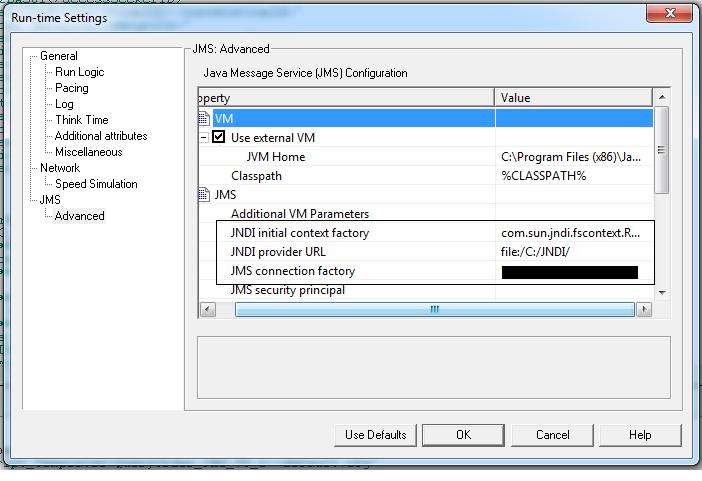
  2. Press F4 to Navigate to Run-time setting and update the following fields in JMS->Advanced option:
  3. -JVM Home: JAVA path
    -JNDI initial context factory: com.sun.jndi.fscontext.RefFSContextFactory
    -JNDI provider URL: file:/C:/JNDI/
    -JMS connection factory: QCF name
  4. Now you are ready to create your MQ script.
  5. You can then use Web Services jms_set_general_property, jms_send_message_queue, jms_set_message_property and jms_receive_message_property functions.
NOTE: JMS Bindings Extensions are not supported in Loadrunner 11.